-
Nutanix NC2 Architecture Explained: Extending Your Datacenter into AWS and Azure
 DAILY CLOUD BLOG / CLOUD ARCHITECTURE / HYBRID MULTICLOUD
Nutanix NC2 Architecture Explained: Extending Your Datacenter into AWS and Azure
A practical architect’s look at how Nutanix Cloud Clusters works, where it fits, and what to consider before deploying it.
Why NC2 Is Worth a Closer Look
After working with virtualization, hyperconverged infrastructure, and public cloud platforms, one question keeps coming up: how do we move workloads to the cloud without rebuilding the entire operating model?
Moving a VM is relatively straightforward. Reworking its networking, storage, security, dependencies, and operational processes is where things get complicated.
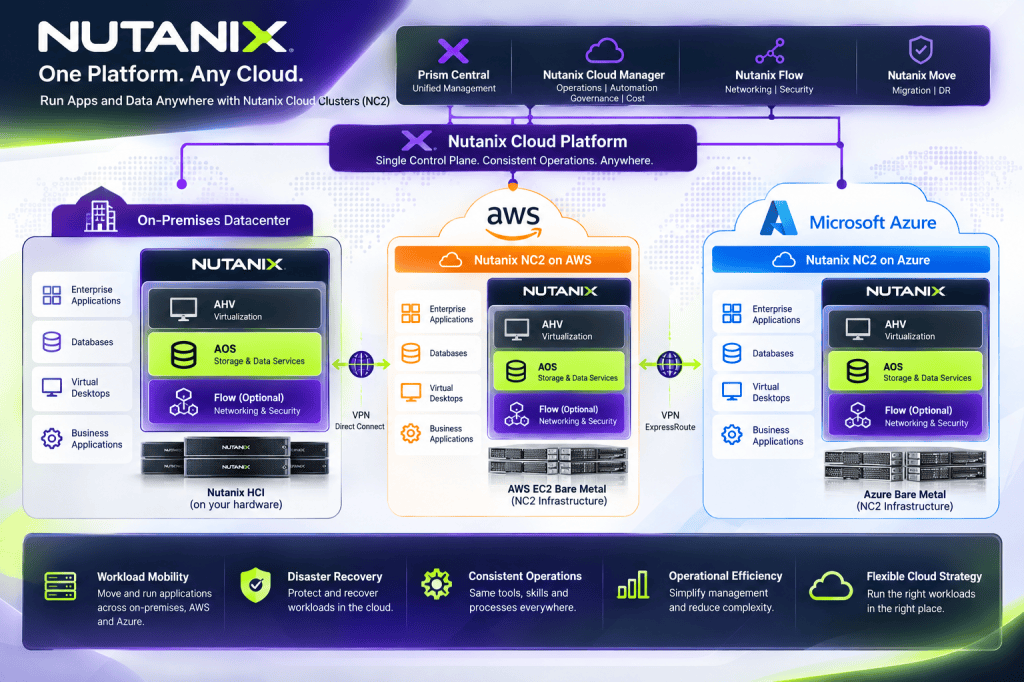
That’s what makes Nutanix Cloud Clusters (NC2) interesting. Instead of requiring every workload to become cloud-native on day one, NC2 lets organizations operate the Nutanix platform on supported public-cloud infrastructure. It’s a useful option for applications that still benefit from a traditional VM architecture.
The key idea: NC2 extends the Nutanix infrastructure stack to supported cloud environments. It doesn’t turn AHV VMs into native EC2 or Azure VMs, and it doesn’t eliminate the need for cloud networking and security design.What Is Nutanix NC2?
NC2 deploys Nutanix software onto supported cloud-hosted bare-metal resources. The familiar building blocks remain: AHV for virtualization, AOS for distributed storage and infrastructure services, and Prism for management. Optional Nutanix Flow and cloud-management capabilities depend on licensing and deployment support.
AWS and Microsoft Azure are important NC2 deployment targets. Other cloud-provider offerings exist, but availability and feature parity must be checked individually.
ARCHITECTURE 01 — HYBRID MULTICLOUD OVERVIEWCommon Nutanix operating model
Prism management • AHV virtualization • AOS storage↓On-PremisesNutanix ClusterEnterprise HardwareNC2 on AWSAHV + AOSSupported EC2 Bare MetalNC2 on AzureAHV + AOSSupported Azure Bare Metal↔ Private connectivity, migration, and recovery workflows ↔Conceptual architecture. Management topology and supported networking features differ by deployment.Consistent infrastructure concepts can simplify operations, but don’t mistake that for identical cloud behavior. Hardware choices, network integration, storage options, and costs remain provider-specific.
Inside an NC2 Cluster
At the node level, the model resembles a conventional Nutanix cluster: guest workloads run on AHV, while Nutanix Controller VMs participate in AOS distributed storage services. The difference is that the physical resources are provisioned from a cloud provider instead of being installed in your own racks.
ARCHITECTURE 02 — ILLUSTRATIVE THREE-NODE CLUSTERNode 1Guest VMsAHVCVM / AOSBare MetalNode 2Guest VMsAHVCVM / AOSBare MetalNode 3Guest VMsAHVCVM / AOSBare Metal↓ Distributed storage fabric ↓AOS data placement • Resiliency • Storage servicesIllustrative only. Actual minimum cluster sizes, hardware, and storage designs depend on the NC2 offering.That familiarity can be valuable for an infrastructure team already managing Nutanix. The team isn’t learning a completely new hypervisor just because the cluster is now hosted in a public cloud.
NC2 on AWS vs. NC2 on Azure
Area NC2 on AWS NC2 on Azure Infrastructure Supported EC2 bare-metal instances Supported Azure bare-metal nodes Cloud network Amazon VPC Azure Virtual Network Virtualization Nutanix AHV Nutanix AHV Storage Nutanix AOS Nutanix AOS Management Nutanix Prism Nutanix Prism Hybrid connectivity VPN / AWS Direct Connect VPN / Azure ExpressRoute The common Nutanix stack makes the environments recognizable, but cloud networking is not interchangeable. In particular, native cloud networking, overlay networks, routing, and security integration need provider-specific designs.
Networking: Where I Would Start the Design
If I were preparing an NC2 deployment, networking would be one of the first workshops—not something to figure out after the cluster is online. Think about an application that moves to the cloud while its database or domain controllers remain on-premises. Even if the VM boots perfectly, latency and DNS issues can still break the application.
ARCHITECTURE 03 — HYBRID CONNECTIVITYOn-Prem DatacenterAD / DNS / AppsNutanix ClusterHybrid TransportVPN or Dedicated LinkRouting / FirewallCloud VPC / VNetNC2 ClusterGuest Workloads↔ Identity • DNS • Segmentation • Monitoring ↔Logical connectivity illustration; not a configuration diagram or a claim of automatic layer-2 extension.Design questions to answer early
- Will workloads retain their IP addresses or be readdressed?
- How will DNS, Active Directory, and other identity services be reached?
- What are the latency and bandwidth requirements between application tiers?
- Where will firewalls, route tables, and segmentation policies be enforced?
- Does the design need native cloud networking, Flow Virtual Networking, or both?
- How will you avoid overlapping subnets and asymmetric routing?
Common pitfall: Assuming a successful VM migration means the application is ready. Test authentication, east-west connectivity, database calls, backup jobs, and monitoring after cutover.Storage: Familiar Architecture, Different Economics
NC2 uses AOS distributed storage services rather than treating every guest VM as an unrelated native cloud instance. That means the architecture still needs deliberate planning for capacity, performance, resilience, and data protection.
Supported storage options differ by provider and configuration. Some designs use local instance storage; supported external-storage choices can affect how independently compute and capacity can scale.
Best practice: Model usable capacity—not just raw capacity—and validate node failure tolerance, workload IOPS, growth, snapshot retention, and the storage behavior of the exact NC2 configuration you’re buying.Migration: Move in Waves, Not All at Once
NC2 can be a practical landing zone for VM-based applications that aren’t ready for refactoring. Nutanix Move supports migration scenarios across selected source and target platforms, subject to the current compatibility matrix.
WORKFLOW 04 — MIGRATION WAVES01 DiscoverInventory & dependencies02 PrepareNC2, network & security03 MigrateSupported migration tools04 ValidateApplication & rollback testsI’d begin with a small noncritical migration wave, verify performance and operational workflows, and then move progressively more complex applications. Every wave should have an owner, success criteria, a cutover window, and a rollback plan.
Disaster Recovery: A Compelling Use Case
For organizations that already operate Nutanix on-premises, NC2 can be part of a cloud-based disaster recovery strategy. Depending on the supported design, it may be possible to keep a smaller recovery footprint and expand resources when needed.
But disaster recovery isn’t a checkbox. The architecture still has to meet recovery point and recovery time objectives, preserve application consistency, and prove that cloud capacity and connectivity will be available during an event.
My DR rule: Don’t rely on a diagram to prove recovery. Run actual failover and failback tests, document the results, and measure recovery time against business requirements.What About Cost?
NC2 may simplify the operating model, but it isn’t automatically cheaper than native AWS or Azure services. Its economics depend on workload density, node utilization, licensing, storage, networking, and how long workloads need to run.
Cost area What to include Compute Bare-metal nodes, commitments, capacity headroom Licensing Nutanix subscription and portability terms Storage Capacity, protection, supported external options Networking Data transfer, VPN, dedicated links, gateways Operations Management, monitoring, support, administration DR Standby resources, replication, recovery tests My preferred approach is a three-year TCO comparison: stay on-premises, move to NC2, or migrate to native cloud services. Include migration effort and people costs—not just the infrastructure line items.
When NC2 Makes Sense—and When It Doesn’t
Strong candidates: Datacenter exits, VM-heavy environments, hybrid operations, supported hypervisor migrations, and cloud-based disaster recovery.Think twice: Small or highly variable workloads that fit native cloud services well, or applications where managed databases, containers, or serverless architectures offer clear long-term advantages.My Take
What I find compelling about NC2 isn’t that it runs VMs in the cloud. We’ve had that option for a long time. It’s the possibility of keeping a consistent infrastructure operating model while changing where the infrastructure lives.
For a Nutanix shop with a sizable virtualization estate, that can make cloud migration less disruptive. But it doesn’t replace architecture work. Networking, storage, identity, security, recovery, and cost still need careful attention.
The goal isn’t to move every workload to the cloud. It’s to put each workload where it makes the most technical, operational, and financial sense.
References and Further Reading
The following vendor resources provide background and product guidance. Check current support matrices and deployment documentation before implementing a production design.
- Nutanix Cloud Clusters — Product Overview
- Nutanix NC2 on AWS — Datasheet
- Nutanix NC2 on Azure — Datasheet
- Nutanix Solutions Architecture
- Simplifying Hybrid Multicloud Networking with Nutanix
- Design Overview: AHV Metro on NC2 on AWS
The architecture diagrams above are original conceptual illustrations for educational purposes, not official Nutanix reference designs.
More Cloud Architecture, Less Hype
Explore practical discussions about infrastructure, hybrid cloud, automation, and cybersecurity.
-
Nutanix HCI vs. Proxmox + Ceph: Understanding Data Locality, Read/Write Paths and HCI Architecture
 NUTANIX • PROXMOX • CEPH • HCI • STORAGE ARCHITECTURE
Nutanix HCI vs. Proxmox + Ceph
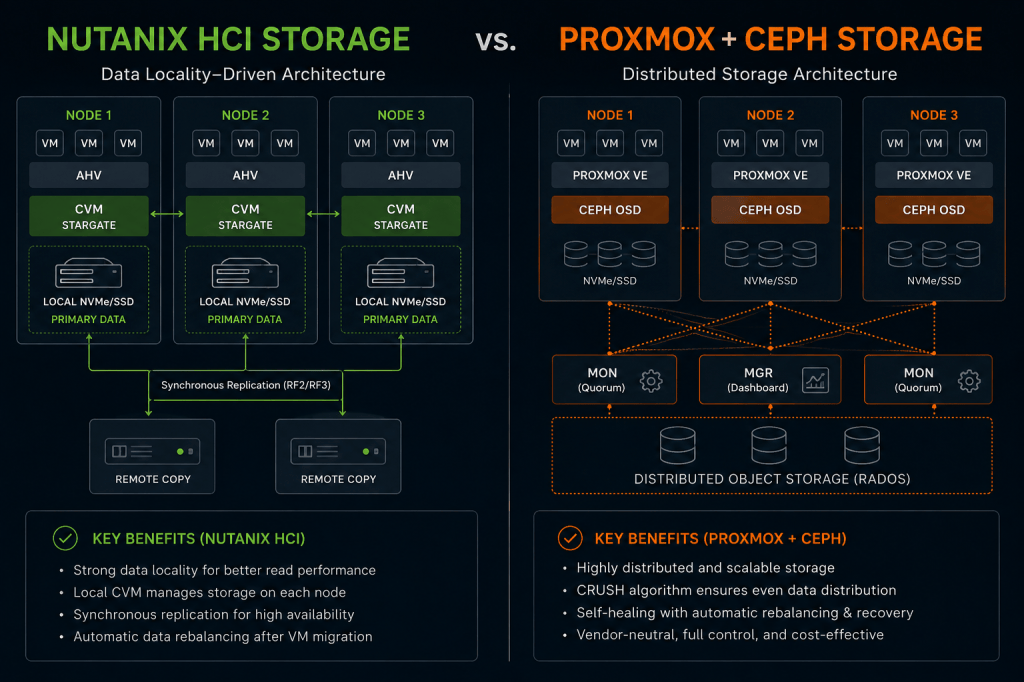
Understanding data locality, read and write paths, replication, CRUSH placement, and why two distributed HCI storage platforms can behave very differently.
By Christian Marrero | Daily Cloud Blog | 10–12 minute read | Architecture & OperationsI have spent a lot of time around Nutanix, and more recently I have been digging deeper into Proxmox VE with Ceph.
At first glance, the two architectures can look surprisingly similar. Both platforms can combine local SSD or NVMe devices across multiple servers into resilient distributed storage. Both can support VM mobility and high availability without depending on a traditional external SAN.
But once you follow a VM I/O request from the guest operating system all the way to physical storage, the design philosophy starts to look very different.
The Bigger Question
What actually happens to VM data when a workload reads or writes storage — and how does that behavior differ between Nutanix HCI and Proxmox with Ceph?
Nutanix is designed around VM data locality. Ceph is designed around distributed object placement and failure-domain-aware access.Architecture Overview
🟩 Nutanix HCI
A local Controller VM services the I/O for VMs running on the node, while AOS attempts to keep VM data local and protects it with copies on other nodes.
🟦 Proxmox + Ceph
The Proxmox RBD client maps VM data into RADOS objects and placement groups. CRUSH determines which OSDs across the cluster are responsible for storing those objects.
How I Think About It
If you come from Nutanix, do not think of Ceph as “Nutanix storage without a CVM.” Both are distributed storage platforms, but their normal I/O paths and locality assumptions are fundamentally different.How Nutanix Data Locality Works
Data locality is one of the most important concepts in Nutanix architecture. Every node runs a Controller VM, or CVM, and the local CVM services storage I/O generated by virtual machines on that hypervisor host.
VM→
Hypervisor→
Local CVM→
Local Data+
Remote Protection CopyConceptual Nutanix path: local CVM, local data access where possible, and remote protection across the cluster.
When locality exists, a read can stay inside the node instead of traversing the storage network. Writes still need distributed protection, but Nutanix starts from the idea that keeping a copy of the VM’s data physically close to the VM is beneficial.
Architecture Tip
Data locality is a performance optimization, not a replacement for replication. The VM can receive local reads while the platform still maintains protected copies on other nodes.How Proxmox + Ceph Placement Works
Ceph starts from a different design principle. A VM disk stored in RBD is divided into RADOS objects. Those objects map into placement groups, and CRUSH determines the OSDs responsible for storing them.
VM→
QEMU / RBD→
RADOS Object→
Placement Group→
CRUSH→
OSDsCeph’s placement is based on the PG acting set and CRUSH topology rather than the physical location of the VM. Important Distinction
The primary OSD for a placement group may be on the same Proxmox host as the VM, or it may be remote. Ceph does not normally move the object’s primary copy simply because the VM is running on a particular node.Read Path: Nutanix vs. Ceph
Nutanix Read Path
VM → Hypervisor → Local CVM → Local Data
When data locality exists, most reads can avoid a network hop to another storage node.
Ceph Read Path
VM → RBD → PG → OSD
By default, RBD reads are directed to the placement group’s primary OSD. That primary can be local or remote relative to the VM.
Ceph Locality Nuance
Modern Ceph RBD supports replica-read policies. Theread_from_replica=localizepolicy can select the closest replica based on CRUSH location. That introduces locality awareness for reads, but it is still different from Nutanix’s VM-centric data-locality model.Write Path: Both Replicate, but Differently
Both architectures protect data by maintaining copies across the cluster. The major difference is where the write path begins.
NUTANIX WRITE PATHVM-101 │ ▼ Local CVM │ ├──────────────► Local Storage Copy │ └──────────────► Remote Protection Copy Another NodeCEPH WRITE PATHVM-101 │ ▼ RBD Client │ ▼ Placement Group │ ▼ Primary OSD │ ├──────────────► Replica OSD │ └──────────────► Replica OSD
How I Think About It
Nutanix begins from compute locality and then adds distributed protection. Ceph begins from distributed placement and then allows the client to access whichever OSDs own the relevant objects.
What Happens When a VM Moves?
Nutanix
Suppose VM-101 is running on Node 1 and is migrated to Node 3. Some reads may initially come from remote storage, but Nutanix can re-localize data as the workload continues operating on the new node. New I/O is serviced by the new local CVM.
VM on Node 1→
Live Migration→
VM on Node 3→
Remote Reads Initially→
Data Re-LocalizesProxmox + Ceph
With Ceph, the RBD image does not need to follow the VM. The VM can migrate from Node 1 to Node 3 and continue accessing the same distributed RBD image.
VM on Node 1→
Live Migration→
VM on Node 3→
Same RBD Image→
Same Distributed Ceph PoolCeph Advantage
Storage does not have to migrate with the VM. Compute mobility and storage placement are decoupled, which is one of the reasons RBD works so well as shared storage for Proxmox HA.Side-by-Side Architecture Comparison
Area Nutanix HCI Proxmox + Ceph Storage Architecture Distributed HCI storage through Nutanix AOS Distributed object storage exposed to VMs primarily through RBD Node Storage Service CVM / Stargate Ceph OSDs with MON/MGR cluster services VM-Centric Data Locality Core design principle Not the default placement model Default Read Behavior Prefer local VM data Read from PG primary OSD Localized Replica Reads Part of the locality architecture Optional through replica-read policy Write Protection Local data path plus remote protection according to resiliency policy Primary OSD coordinates writes to the acting set Placement Intelligence AOS placement and data-locality behavior CRUSH hierarchy, PGs, pool policy and OSD map VM Migration Data can re-localize around the new compute location RBD object placement does not need to follow the VM Network Dependency East-west networking matters, but local reads reduce remote traffic East-west storage networking is fundamental to normal I/O, replication and recovery External SAN Required No No Why the Ceph Network Matters So Much
Once you understand the Ceph data path, one design decision becomes obvious: the network is part of the storage system.
🌐 Client I/O
Proxmox RBD clients communicate directly with OSDs responsible for the affected placement groups.
🛡️ Replication
Primary OSDs coordinate protected writes to other OSDs in the acting set.
♻️ Recovery
Disk and node failures generate additional OSD-to-OSD recovery traffic.
⚖️ Rebalancing
Adding or removing capacity can trigger significant east-west data movement.
Architecture Tip
With an all-flash Ceph cluster, network bandwidth can become the limiting component long before the SSDs do. For modern production designs, 25 GbE is an attractive starting point when the workload and budget justify it.If You Come From Nutanix, Think About Ceph This Way
Nutanix Concept Closest Proxmox / Ceph Concept Important Difference AOS Ceph Different storage architecture and operational model CVM OSD / MON / MGR services Ceph does not use one storage controller VM per node Storage Container Ceph Pool Useful conceptual mapping, but not a one-to-one feature match vDisk RBD Image RBD images are split into distributed RADOS objects RF2 / RF3 Replicated pool size 2 / 3 Similar resilience idea, but semantics should not be assumed identical Data Locality CRUSH placement + optional localized replica reads Ceph placement is not primarily tied to the VM’s compute location Prism Proxmox VE GUI + Ceph tooling Nutanix offers a more tightly integrated management plane Which Architecture Is Better?
I would not reduce the answer to “Nutanix is faster” or “Ceph scales better.” Those statements are too broad to be useful.
Nutanix Makes Sense When…
You want a highly integrated HCI stack, VM-centric data locality, mature lifecycle management, operational simplicity, and a consistent vendor-supported platform.
Proxmox + Ceph Makes Sense When…
You want open architecture, commodity hardware flexibility, distributed shared storage, strong scale-out principles, and direct control over how the infrastructure is designed and operated.
What to Avoid
Do not design Ceph around the expectation that a VM’s data will always remain physically local to its compute node. Design the storage fabric so remote distributed I/O is fast, resilient and predictable.Final Thoughts
Nutanix and Proxmox with Ceph both demonstrate how virtualization can move beyond dependency on a dedicated external SAN.
Both can use storage inside standard servers. Both can distribute and protect data. Both can support VM mobility and high availability. Both can scale horizontally.
But they do not treat the relationship between compute and data in the same way.
Nutanix tries to bring the data close to the VM. Ceph gives the VM efficient access to data distributed across the cluster.That one architectural distinction changes the way I think about network design, failure domains, VM movement, recovery traffic and performance troubleshooting in each platform.
Keep Exploring Modern Infrastructure
Daily Cloud Blog covers Azure, AWS, Nutanix, VMware, Proxmox, Ceph, cloud architecture, virtualization, storage, security and enterprise infrastructure.
-
AWS Security Agent: What It Is, Where It Fits, and Why It Matters
 AWS • Cybersecurity • DevSecOps • Agentic AI
AWS Security Agent: What It Is, Where It Fits, and Why It Matters
AWS Security Agent brings AI-assisted threat modeling, code review, security testing,
penetration testing, and remediation closer to the application development lifecycle.
But where does it actually fit in an enterprise security strategy?Daily Cloud Blog | AWS Security | August 2026I’ve been spending some time looking at AWS Security Agent, and I think
it is one of the more interesting security services AWS has introduced recently.Not because it has “AI” attached to it, but because of where AWS appears to be taking
application security.For years, most of us have worked with a fairly familiar model.
Developers build the application, security tools scan it, vulnerabilities get reported,
and then somebody has to figure out which findings actually matter.In a large environment, that process can become noisy very quickly.
What Caught My Attention
AWS Security Agent is not designed to simply generate another vulnerability report.
The interesting part is that it attempts to understand the application itself —
its architecture, source code, documentation, security requirements, and development
context — before helping evaluate the security risk.That can include threat modeling, security reviews, code analysis, penetration testing,
vulnerability validation, and remediation guidance.That is what caught my attention.
So, What Exactly Is AWS Security Agent?
At a high level, AWS Security Agent is an AI-powered application security service intended
to help security and development teams identify and validate security issues throughout
the software development lifecycle.The important word there is context.
Traditional scanners are very good at identifying potential vulnerabilities, but anyone
who has spent time working through vulnerability reports knows that not every finding
carries the same level of risk.Some findings are serious.
Some are technically valid but extremely difficult to exploit.
Others simply do not apply to the way the application is actually deployed.
AWS Security Agent is designed to take more of that application context into account and,
in certain scenarios, go a step further by attempting to validate whether a vulnerability
is actually exploitable.Potential Finding vs. Validated Risk
There is a big operational difference between saying,
“This application may be vulnerable” and saying,
“I was able to reproduce this attack path and here is how it was exploited.”
That second result gives security and application teams something much more actionable.🧠Threat Modeling
Review application architecture, data flows, trust boundaries, threats, and potential attack paths.
🔎Code Review
Bring security analysis closer to developers and the source-code workflow.
⚔️Penetration Testing
Test applications and APIs using context-aware attack scenarios.
🛠️Remediation
Help developers understand findings and move more quickly toward fixing the problem.
Where I Think the Service Fits
I do not see AWS Security Agent replacing services such as Amazon GuardDuty,
Amazon Inspector, AWS Security Hub, or AWS WAF.Those services solve different problems.
GuardDuty is focused heavily on threat detection.
Inspector helps identify vulnerabilities across supported workloads.
Security Hub gives security teams centralized visibility into security posture and findings.
AWS WAF is there to help protect web applications from malicious requests.
AWS Security Agent sits much closer to the
application development and application security lifecycle.That is an important distinction.
AWS Service Primary Focus Where It Fits AWS Security Agent Application Security Threat modeling, code review, penetration testing, validation Amazon GuardDuty Threat Detection Suspicious and malicious activity detection Amazon Inspector Vulnerability Management Workload and software vulnerability discovery AWS Security Hub Security Posture Centralized findings and posture management AWS WAF Application Protection Blocking malicious web traffic AWS Security Agent in the Application Lifecycle
The way I look at AWS Security Agent is not as something that simply sits beside an EC2
instance and scans it.It belongs closer to the application lifecycle.
AWS SECURITY AGENT – APPLICATION SECURITY FLOWAPPLICATION DEVELOPMENT Developers │ ▼ Source Repository │ ▼ ┌────────────────────────┐ │ AWS SECURITY AGENT │ └───────────┬────────────┘ │ ┌─────────────────┼─────────────────┐ │ │ │ ▼ ▼ ▼ Threat Modeling Security Review Pen Testing │ │ │ └─────────────────┼─────────────────┘ │ ▼ Application Context │ ┌───────────────┼───────────────┐ │ │ │ ▼ ▼ ▼ Source Code Architecture Documentation IaC / APIs Data Flows Requirements │ ▼ SECURITY FINDINGS │ ┌─────────┴─────────┐ ▼ ▼ Validate Fix Risk ApplicationConceptual architecture – Daily Cloud Blog
Agent Spaces
One of the first concepts that comes up when working with AWS Security Agent is an
Agent Space.I think of an Agent Space as a dedicated security workspace for an application or project.
Instead of throwing every application into the same bucket, you can maintain separate
security contexts.That makes a lot of sense, especially in an enterprise where applications may have
completely different architectures, data classifications, repositories, owners, and
security requirements.Think of an Agent Space as the Security Workspace for an Application
- Application context
- Connected repositories
- Architecture information
- Design reviews
- Threat models
- Penetration-testing configuration
- Previous test results
- Security findings
- Application-specific remediation information
From an architecture perspective, I like this model because it creates a cleaner
separation between enterprise-level security policy and the security context of an
individual application.Threat Modeling Earlier in the Process
Threat modeling is one of the areas I find particularly useful.
Too often, threat modeling happens after most of the application architecture has already
been decided.At that point, changing a trust boundary, authentication model, network flow, or
data-handling approach can become expensive.The better approach is to have those conversations while the system is still being designed.
AWS Security Agent can help analyze application architecture and identify areas such as:
- Application components
- Data flows
- Trust boundaries
- Potential attack paths
- Threat actors
- Security assumptions
- Recommended mitigations
S – Spoofing
Impersonating another identity.T – Tampering
Unauthorized modification of data.R – Repudiation
Actions that cannot reliably be attributed.I – Information Disclosure
Exposure of sensitive information.D – Denial of Service
Attacks against application availability.E – Elevation of Privilege
Obtaining permissions beyond authorization.The STRIDE methodology itself is nothing new.
What is interesting is being able to automate more of that analysis based on the actual
application context.Code Review and Shift-Left Security
We have been talking about shift-left security for years, but making it
work consistently is another story.Developers want to move fast.
Security teams want enough time to review changes properly.
Operations teams want stable releases.
Those priorities do not always line up perfectly.
If security issues are discovered too late in the release cycle, everybody ends up paying
for it.
The traditional workflow often looks like this:
Developer → Build → Deploy → Security Scan → Vulnerability → Ticket → Rework
A better workflow looks more like this:
Developer → Pull Request → Security Review → Fix → Build → Deploy
The goal is straightforward:
Find the security problem while the developer is still working on the code,
not two weeks after the application has been deployed.That does not eliminate the need for testing later in the lifecycle, but it can reduce
a lot of unnecessary rework.Autonomous Penetration Testing
This is probably the capability that will get the most attention.
AWS Security Agent can perform on-demand penetration testing against web applications
and APIs.What makes this more interesting than a standard vulnerability scan is the ability to
attempt multi-step attack scenarios and validate whether certain vulnerabilities are
actually exploitable.That matters.
Anyone Who Has Managed Vulnerabilities Has Seen This
A scanner produces hundreds or thousands of findings.
The scanner says they are vulnerable.
The infrastructure or application team says they are not.
Security asks for validation.
Then somebody spends several hours trying to reproduce the issue manually.
If an automated security agent can reliably identify the weakness, reproduce the attack,
document what happened, and provide the developer with enough information to fix it,
that can remove a lot of unnecessary back-and-forth.Of course, that also means penetration-testing scope needs to be taken seriously.
What a Typical Workflow Could Look Like
1Create an Agent Space
Start with a dedicated workspace for the application or project.2Configure Identity and Permissions
Set up the appropriate IAM permissions and access controls.3Connect the Application Context
Associate source repositories, documentation, architecture information, and other relevant context.4Define Security Requirements
Determine what security requirements and organizational policies the application needs to meet.5Perform Security Reviews
Run threat modeling, code review, design review, or other appropriate assessments.6Run an Authorized Penetration Test
Test the application or API against the boundaries established by the organization.7Review and Remediate
Validate the findings, understand the risk, and move remediation through normal development
and change-management processes.Where I Would Start
I would probably start with a staging environment before allowing development teams to
run autonomous security testing against production. That gives everyone a chance to
understand how the service behaves and what kind of activity it generates.Security Requirements and Governance
One area I would not overlook is governance.
The tool itself is only part of the solution.
Organizations still need to decide what secure actually means for them.
AWS Security Agent can work with security requirements associated with organizational
standards and security frameworks.AWS Well-ArchitectedNISTPCI DSSCustom RequirementsFor a larger enterprise, I would spend some time designing these requirements before
rolling the service out broadly.Otherwise, it is very easy to end up with another security platform producing information
without a clear process for deciding what needs to be fixed, when it needs to be fixed,
and who actually owns the remediation.What About Hybrid and Multicloud Environments?
Another thing that stood out to me is that AWS Security Agent is not necessarily limited
to applications running completely inside AWS.That is important because most enterprise environments are not 100 percent cloud-native.
You might have an application running in AWS that communicates with an on-premises database.
Another development team may be running applications in Azure.
Another workload could span multiple cloud providers.
APPLICATION ENVIRONMENTS
AWS
Microsoft Azure
Google Cloud
On-Premises
Hybrid Cloud
Application security should not completely change just because the workload happens
to live somewhere else.That makes AWS Security Agent more interesting from an enterprise architecture perspective.
Where I Would Be Careful
There are a few areas I would pay close attention to before rolling this out at scale.
⚠️ Things I Would Watch Closely
Permissions.
Security products sometimes require significant access in order to do their jobs.
IAM design and least privilege still matter.Testing boundaries.
Autonomous penetration testing still needs clearly defined scope. Teams should know
exactly which URLs, APIs, applications, and environments are authorized for testing.Application context.
If source code, architecture diagrams, documentation, and security requirements are
being connected to the service, understand how that information is classified within
your organization.Generated remediation.
Automatically suggested code changes should still go through normal code review,
testing, and change management.Cost.
Security testing needs ownership and cost governance just like any other cloud service.
Do not assume the duration you see on the screen automatically represents total billable
testing activity.How I Would Approach an Enterprise Deployment
Start Small
Begin with one or two applications instead of immediately enabling the service across
the entire development organization.Separate Agent Spaces
Keep application security contexts separated so findings and requirements remain
manageable.Use Least Privilege
Avoid giving security automation more access than it actually requires.
Test Staging First
Learn how the testing behaves before expanding autonomous testing into production.
Keep Human Review
Use AI-assisted security to support experienced security teams, not remove them from
the process.Define Ownership
Every finding should have a clear owner, severity model, remediation workflow, and
expected response time.Is This Going to Replace Penetration Testers?
I do not think so.
At least, that is not how I would approach it.
Experienced penetration testers bring creativity, intuition, business context, and the
ability to connect seemingly unrelated weaknesses together.Security architects understand why systems were designed a certain way.
Developers understand the internal logic of the application.
AI-assisted security tooling should help those people work faster.
It should not be treated as a replacement for security expertise.
Where I See the ValueIf a security team can spend less time chasing scanner noise and manually validating
routine findings, that gives them more time to investigate attack paths, review
architecture, work directly with developers, and focus on vulnerabilities that represent
real business risk.My Take on AWS Security Agent
What I find most interesting about AWS Security Agent is not that AWS created another AI
service.It is the direction AWS is taking with application security.
Today, application security is still very fragmented.
Architect creates the design
↓
Developer writes the code
↓
Scanner generates findings
↓
Security reviews the findings
↓
Penetration tester validates the vulnerability
↓
Someone opens a ticket
↓
Developer receives the ticket later
↓
Developer tries to determine what actually needs to changeThere are a lot of handoffs in that process.
AWS Security Agent is essentially trying to shorten that loop.
If AWS Security Agent can successfully connect application context, architecture,
source code, threat modeling, security testing, exploit validation, and remediation
into a continuous workflow, that could be extremely valuable in larger development
environments.That is where I see the real potential.
Not replacing the security team.
Not replacing penetration testers.
Not replacing developers.
Instead, giving those teams another way to scale the security work they are already doing.
Final Thoughts
AWS Security Agent represents an interesting shift in how application security could
operate inside modern cloud environments.Instead of security tools simply telling us that something might be wrong,
we are moving toward tools that can understand the application, investigate the problem,
attempt to validate it, explain why it matters, and help teams fix it.There is still a lot to think about around governance, IAM permissions, testing scope,
cost, and how much responsibility organizations should delegate to autonomous security
tooling.But the direction is interesting.
For enterprises operating large AWS, hybrid cloud, or multicloud environments,
I think AWS Security Agent is a service worth watching.And as these capabilities mature, I expect
agentic security to become a much bigger part of the DevSecOps conversation.AWS References
Cloud • Security • ArchitectureKeep Exploring Cloud Architecture
Cloud security is becoming much more than firewalls and vulnerability scanners.
Modern environments require identity, architecture, application security, DevSecOps,
automation, governance, and operational security working together.Disclaimer: AWS services, capabilities, preview status, pricing, integrations, and
availability can change over time. Always review current AWS documentation before
implementing security controls or performing penetration testing against production
systems. AWS, Amazon Web Services, and related service names are trademarks of
Amazon.com, Inc. or its affiliates. -
Azure Arc-Enabled VMware vSphere

When we talk about hybrid cloud, the conversation often moves almost immediately toward migration.
Which VMware workloads are moving to Azure? Which applications are staying on-premises? When do we start reducing the size of the data center?
But real enterprise environments are rarely that simple.
Many organizations have hundreds or thousands of VMware virtual machines that may continue running on-premises for years. Some have latency requirements. Others have application dependencies, licensing considerations, data gravity, compliance requirements, hardware dependencies, or simply no strong business reason to move.
That is where Azure Arc-enabled VMware vSphere becomes interesting.
The Bigger QuestionHow do we bring cloud-style management, governance, security, and automation to the VMware infrastructure we already have?From an architecture perspective, this is where Azure Arc becomes much more than another management tool. It becomes a bridge between traditional virtualization operations and a modern cloud operating model.
Architecture OverviewWhat Is Azure Arc-Enabled VMware vSphere?
Azure Arc-enabled VMware vSphere extends the Azure control plane into VMware vSphere environments.
Instead of treating VMware infrastructure as a completely separate operational island, organizations can connect VMware vCenter Server to Azure and represent selected VMware resources inside Azure Resource Manager.
Azure can discover VMware resources including:
💻 Virtual Machines📦 VM Templates🌐 Networks💾 Datastores🧱 Clusters🖥️ Hosts⚙️ Resource PoolsImportant:
Azure Arc does not migrate the VMware VM into Azure. The virtual machine continues running on the existing VMware infrastructure and remains part of the vCenter-managed environment.How I Think About ItVMware Remains the Infrastructure Platform. Azure Becomes Part of the Management Plane.
vCenter still manages the underlying VMware infrastructure. Azure Arc adds another operational layer that can provide governance, policy, automation, security, inventory, lifecycle operations, and access through Azure.
Core ArchitectureHow the Architecture Works
The key architectural component is the Azure Arc Resource Bridge.
The Resource Bridge is deployed into the VMware environment as a virtual appliance and hosts the components responsible for communicating with both VMware vCenter Server and Azure.
                  MICROSOFT AZURE
                         │
           ┌─────────────┴─────────────┐
           │ Azure Resource Manager    │
           │ Azure Policy              │
           │ Azure Monitor             │
           │ Defender for Cloud        │
           │ Azure Update Manager      │
           │ Azure RBAC                │
           │ Automation / IaC          │
           └─────────────┬─────────────┘
                         │
                     Azure Arc
                         │
                 Secure Connection
                         │
           ┌─────────────▼─────────────┐
           │ Azure Arc Resource Bridge│
           └─────────────┬─────────────┘
                         │
                 VMware vCenter
                         │
           ┌─────────────▼─────────────┐
           │ VMware vSphere Platform  │
           └─────────────┬─────────────┘
                         │
             ESXi Hosts / Clusters
                         │
                  VMware VMs
Once vCenter is connected, VMware inventory is discovered and synchronized with Azure. Selected resources can then be enabled as Azure resources and participate in Azure management workflows.
Architecture Tip:
Treat the Azure Arc Resource Bridge as management infrastructure. Its networking, DNS, permissions, connectivity, lifecycle, health monitoring, and recovery procedures should be designed as part of the platform—not as an afterthought.🔎Inventory Discovery
Connecting vCenter allows Azure Arc to discover VMware infrastructure and maintain inventory information. This gives cloud and infrastructure teams another centralized view of resources across the hybrid estate.
🏷️Azure Organization
Arc-enabled resources can participate in Azure organizational models using subscriptions, resource groups, tags, role assignments, policy scopes, and Azure Resource Graph.
📊Enterprise Visibility
At enterprise scale, consistent resource classification becomes valuable for identifying workload ownership, environment, business unit, criticality, application mapping, and governance status.
A Simple Tagging Model
Before onboarding a large VMware estate, I would define a tagging model that can work across both Azure-native and Arc-enabled infrastructure.
Environment  = Production
BusinessUnit = Finance
Application  = ERP
Owner        = Infrastructure
Criticality  = Tier1
Platform     = VMware
Location     = Datacenter01
OperationsVM Lifecycle Management Through Azure
Arc-enabled VMware goes beyond inventory. Azure can expose lifecycle capabilities for VMware virtual machines so administrators and authorized users can perform common operations through Azure experiences and APIs.
CreateStartStopRestartUpdateDeleteThe VM remains a VMware VM. The difference is that Azure becomes another controlled interface through which lifecycle operations can be exposed.
Turning VMware Into a More Cloud-Like Self-Service Platform
This is one of the areas I find most interesting from an architecture and operations perspective.
Traditional ModelApplication Team ↓ Service Request ↓ Infrastructure Team ↓ vCenter ↓ VM ProvisionedArc-Enabled ModelApplication Team ↓ Azure / API / IaC ↓ Azure RBAC ↓ Azure Arc ↓ Resource Bridge ↓ vCenter ↓ VMware VMThe virtualization team can continue controlling the underlying clusters, networks, datastores, templates, and vCenter permissions while application teams receive carefully scoped access to approved resources and operations.
Important DistinctionArc-Enabled VMware vs. Arc-Enabled Servers
🖥️Azure Arc-Enabled Servers
Primarily interacts with the guest operating system through the Azure Connected Machine agent.
Azure
↓
Connected Machine Agent
↓
Windows / Linux Guest OS☁️Arc-Enabled VMware vSphere
Extends management beyond the guest OS to the VM object and virtualization layer, including VM lifecycle operations.
Azure
↓
Azure Arc
↓
Resource Bridge
↓
vCenter
↓
VMware VMManaging Both the VM and the Guest Operating System
The architecture becomes more powerful when VM-level management and guest management are combined.
Infrastructure LayerVM discovery, VM lifecycle operations, virtual resource visibility, and VMware resource management through Azure.
Guest OS LayerAzure services can extend into supported Windows and Linux guest operating systems through Arc-enabled server capabilities.
Azure Services That Can Become Part of the Operating Model
📜Azure Policy
Evaluate governance and configuration requirements across supported Arc-enabled resources.
📈Azure Monitor
Centralize selected operational telemetry and monitoring workflows.
🛡️Defender for Cloud
Extend supported cloud security posture and workload protection capabilities.
🔄Update Management
Create a more consistent approach to operating system patching across hybrid environments.
🔐Azure RBAC
Delegate appropriate operations while minimizing broad vCenter access.
🔎Resource Graph
Query and understand resources across Azure and Arc-enabled environments.
Centralized Monitoring Without Throwing Away VMware Tooling
Hybrid environments often have fragmented monitoring:
VMware Infrastructure
        ↓
vCenter / VMware Monitoring

Windows / Linux
        ↓
OS Monitoring Platforms

Microsoft Azure
        ↓
Azure Monitor / Log Analytics
I would not approach Azure Arc with the expectation that every VMware monitoring platform should disappear.
A better architectural question is: Which telemetry, alerts, security signals, and operational workflows provide enough enterprise value to centralize?
Security & GovernanceWhere Azure Arc Can Add Significant Enterprise Value
One of the biggest problems I see in hybrid environments is that governance evolves differently on each platform.
Azure may have well-developed policy, security, tagging, monitoring, and access-control standards while the on-premises virtualization estate follows a completely separate operational model.
Azure Arc gives architects an opportunity to establish a more consistent governance and security framework without pretending every workload lives in the same place.
Define the Operating Model Before Deployment
One of the most important conversations should happen before the first production vCenter is onboarded:
Who owns what?VMware Team
ESXi, vCenter, clusters, vSphere networking, datastores, HA/DRS, storage integration, and VMware platform health.
Cloud Platform Team
Azure Arc, Resource Bridge, subscriptions, resource groups, RBAC, policy integration, cloud automation, and platform standards.
Security Team
Security posture, Defender integrations, compliance requirements, logging strategy, threat monitoring, and security policy.
Operations Team
Monitoring, alerting, Log Analytics, updates, incident workflows, operational dashboards, and day-two support.
Automation and Infrastructure as Code
Another architectural advantage is the ability to bring VMware provisioning into modern automation workflows.
Terraform
Bicep
ARM
Azure CLI
PowerShell
REST APIGit Repository ↓ CI/CD Pipeline ↓ Terraform / Bicep ↓ Azure Resource Manager ↓ ├──────────── Azure VM │ └──────────── Arc-Enabled VMware ↓ Resource Bridge ↓ vCenter ↓ VMware VMThe underlying hypervisor may still be VMware, but the provisioning and governance workflow starts looking much more like a cloud platform.
Where Azure Arc-Enabled VMware Makes Sense
🏢 Large VMware Estates
Modernize management and governance without requiring every VMware workload to migrate first.
☁️ Hybrid Cloud
Create greater consistency between Azure resources and workloads that must remain on-premises.
⚙️ Cloud Operating Model
Introduce RBAC, policy, tagging, APIs, automation, and Infrastructure as Code into VMware operations.
🛡️ Security Standardization
Bring selected hybrid workloads into a broader security governance and monitoring strategy.
🚀 Data Center Modernization
Adopt cloud management principles incrementally rather than requiring an all-or-nothing migration.
👨💻 Developer Self-Service
Provide controlled access to infrastructure operations while the virtualization team retains control of the platform.
Architecture Considerations Before You Deploy
01 — Network ConnectivityReview DNS, routing, firewall rules, proxy requirements, outbound connectivity, and how Arc management traffic will flow through the environment.
02 — Identity & PermissionsDesign Azure and VMware access around least privilege. Avoid building the integration around unnecessarily broad administrative accounts.
03 — Azure Resource HierarchyDecide how VMware resources map into subscriptions, management groups, resource groups, policies, and tags before scaling onboarding.
04 — Naming StandardsVMware and Azure naming conventions may have evolved separately. Determine how the two standards will coexist.
05 — Monitoring & SupportMonitor the Arc platform components as well as the underlying VMware environment and document how incidents will be triaged.
06 — Change ManagementOnce lifecycle operations are exposed through Azure, administrators may be able to change VMware resources from more than one management surface.
Production GuidanceBest Practices I Would Follow
✓ Design the Azure resource hierarchy first.✓ Use RBAC and least privilege.✓ Establish consistent tagging standards.✓ Define ownership across platform teams.✓ Treat Resource Bridge as critical management infrastructure.✓ Validate DNS, firewall, proxy, and routing.✓ Use Azure Policy where it adds governance value.✓ Integrate security intentionally.✓ Automate repeatable workflows with IaC.✓ Start with a controlled non-production pilot.✓ Test lifecycle operations before self-service.✓ Document recovery and troubleshooting procedures.A Practical Adoption Strategy
I would not connect the entire VMware estate on day one. A phased approach gives the organization time to build the operational model around the technology.
1ArchitectureDefine subscriptions, resource groups, RBAC, connectivity, security, naming, tagging, policy, and operational ownership.
2PilotConnect a controlled VMware environment and validate discovery, synchronization, access, network flows, and operational processes.
3Guest ManagementIntroduce selected Azure management services to a limited group of Windows and Linux workloads.
4AutomationBuild repeatable deployment and operational workflows using APIs, Terraform, Bicep, CLI, or PowerShell.
5Self-ServiceDelegate approved operations to application or development teams through Azure RBAC and defined resource boundaries.
6ScaleExpand the design across additional clusters, vCenters, locations, workloads, and business units once the operational model has been validated.
What Azure Arc Does Not Replace
Azure Arc does not eliminate the need for VMware skills.
ESXi
vCenter
vSphere Networking
Datastores
HA
DRS
Storage
Backup
Disaster Recovery
TroubleshootingArc provides an additional control, governance, and operational layer. The health and design of the underlying VMware platform still matter.
My View as a Cloud ArchitectHybrid Cloud Does Not Always Mean “Move Everything to the Cloud.”
Sometimes the better strategy is to bring cloud operating principles to infrastructure that needs to remain where it is.
Organizations already have large investments in VMware infrastructure, applications, storage, networking, backup platforms, disaster recovery, automation, and staff expertise.
Those investments do not suddenly disappear because the organization adopts Azure.
Azure Arc provides a way to connect those worlds.
             ENTERPRISE CONTROL PLANE

                  Microsoft Azure
                        │
        ┌───────────────┼───────────────┐
        │               │               │
   Governance        Security       Monitoring
        │               │               │
        └───────────────┼───────────────┘
                        │
                     Azure Arc
                        │
          ┌─────────────┴─────────────┐
          │                           │
    Azure Resources             VMware vSphere
                                      │
                                   vCenter
                                      │
                                 ESXi Clusters
                                      │
                                 Enterprise VMs
The infrastructure remains distributed. The operating model becomes increasingly consistent.
Final Thoughts
Azure Arc-enabled VMware vSphere is more interesting to me than simply seeing a VMware VM listed inside the Azure portal.
The real value is the operating model it can enable.
Organizations can continue using VMware while gradually introducing Azure governance, security, monitoring, automation, RBAC, policy, and Infrastructure as Code.
For enterprises that expect VMware and Azure to coexist for years, this can be far more realistic than treating hybrid cloud as a temporary phase before everything moves into public cloud.
The goal is not necessarily to make VMware behave exactly like Azure.The goal is to give the organization a more consistent way to govern, secure, automate, monitor, and operate infrastructure regardless of where the workload actually runs.
📚 Microsoft Documentation
For current prerequisites, supported versions, connectivity requirements, deployment steps, limitations, and feature updates, always validate the design against Microsoft’s current Azure Arc documentation.
Hybrid Cloud • Infrastructure • ArchitectureDesigning a Hybrid Azure and VMware Strategy?
MB Technology Group LLC helps organizations design, modernize, secure, and operate enterprise infrastructure across Microsoft Azure, AWS, VMware, Nutanix, virtualization, storage, backup, disaster recovery, and hybrid cloud environments.
Stay Connected with Daily Cloud Blog
If you found this architecture breakdown useful, follow Daily Cloud Blog for more practical content on cloud, virtualization, Microsoft infrastructure, cybersecurity, DevOps, and enterprise architecture.
I regularly share technical breakdowns, architecture guidance, migration lessons, and real-world infrastructure insights designed for engineers, architects, and IT leaders.
References
-
Microsoft Learn — What is Azure Arc-enabled VMware vSphere?
-
Microsoft Learn — Azure Arc-enabled VMware vSphere Documentation
-
Microsoft Learn — Azure Arc Overview
Suggested Categories: Azure, Enterprise Architecture, Microsoft, Microsoft Infrastructure, Public Cloud, VMware
Suggested Tags: Azure Arc, Azure Arc-enabled VMware vSphere, VMware, vSphere, vCenter, Hybrid Cloud, Microsoft Azure, Enterprise Architecture, Infrastructure as Code, Azure Resource Bridge, Virtualization, Cloud Architecture
-
-
Migrating On-Premises Hyper-V Virtual Machines to Microsoft Azure
Migrating On-Premises Hyper-V Virtual Machines to Microsoft Azure
A practical guide to discovering, assessing, replicating, testing, and migrating Hyper-V workloads to Azure, including best practices, common mistakes, and lessons learned from the field.
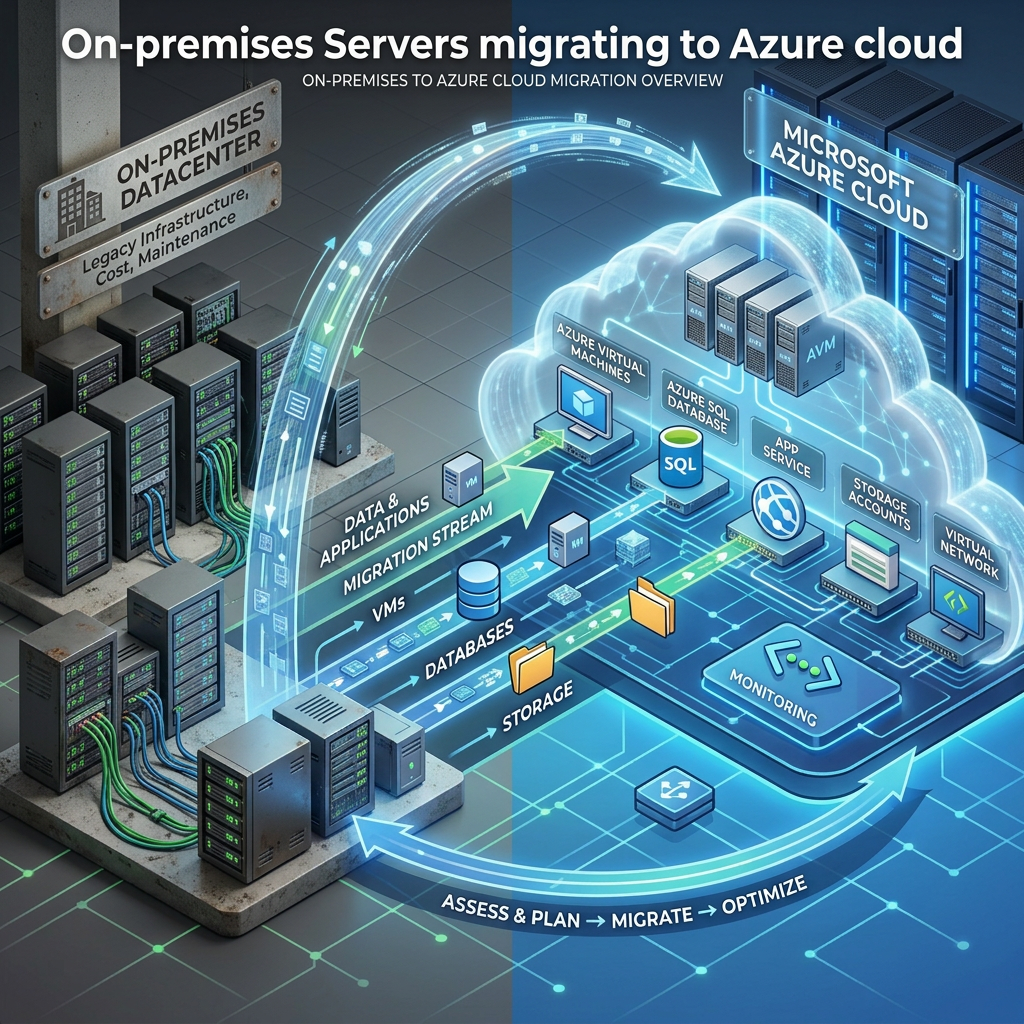
Migrating an on-premises virtual machine from Hyper-V to Microsoft Azure can appear straightforward when the process is reduced to a few portal steps. Discover the server, assess it, enable replication, run a test migration, and complete the production cutover.
In real-world migrations, however, moving the virtual disks is usually the easy part. The harder work involves understanding application dependencies, preparing networking and DNS, selecting the correct Azure VM and disk sizes, validating security controls, and making sure the workload can be monitored, protected, patched, and supported after the move.
I have found that the strongest migration projects treat the virtual machine as part of a larger business workload. The server may depend on databases, domain controllers, file shares, licensing services, firewall rules, scheduled tasks, service accounts, and external integrations that are not immediately visible in the Hyper-V console.
This article walks through the complete Hyper-V-to-Azure migration process using Azure Migrate and includes the practical details that can help avoid problems during the maintenance window.
What Is Azure Migrate?
Azure Migrate is Microsoft’s centralized platform for discovering, assessing, and migrating on-premises servers, applications, databases, and virtual desktop workloads into Azure.
For Hyper-V environments, Azure Migrate can inventory virtual machines, collect performance information, evaluate Azure readiness, recommend Azure VM sizes, estimate cost, replicate virtual disks, create isolated test migrations, and perform the final production cutover.
The Hyper-V to Azure Migration Process
How Hyper-V Replication to Azure Works
Azure Migrate uses replication components installed on the Hyper-V hosts or failover cluster nodes. This provides an agentless migration experience for the guest virtual machines because migration software normally does not need to be installed inside every VM.
During initial replication, Azure Migrate copies the selected virtual disks to Azure. While the first copy is running, new disk changes are tracked on the Hyper-V side. After the initial synchronization is complete, Azure Migrate transfers only the changed blocks until the final migration.
Architecture Tip:
Do not monitor only the Azure portal. Also monitor Hyper-V host storage, replication logs, outbound bandwidth, proxy health, firewall behavior, and source workload performance.Plan the Migration Around the Application
A migration should be organized around applications and business services, not only around individual virtual machines. A three-tier application may include web, application, and database servers located on different Hyper-V hosts, but those systems still need to be evaluated and migrated as one workload.
Before enabling replication, identify the business owner, application owner, technical owner, maintenance window, acceptable downtime, rollback requirements, validation process, and support team.
Questions to Answer Before Starting
- Who owns the application?
- Who can validate the application after migration?
- How much downtime can the business tolerate?
- How much data loss would be acceptable during rollback?
- Which servers, databases, file shares, APIs, and services depend on the workload?
- Will the Azure VM need to communicate with systems that remain on-premises?
- Will DNS records, firewall rules, routes, certificates, or licensing change?
- How will the workload be backed up, monitored, patched, and secured in Azure?
Lesson from the Field:
Do not wait until cutover night to determine who will test the application. Identify the tester, validation steps, expected results, and acceptance criteria before the migration begins.Prepare the Azure Landing Zone
The target Azure environment should be ready before the first production workload is replicated. Creating a VNet and subnet is only the beginning.
- Create or select the correct Azure subscription.
- Confirm the target Azure region.
- Prepare the target virtual network and subnets.
- Configure VPN or ExpressRoute connectivity when hybrid communication is required.
- Configure route tables, Network Security Groups, and firewall rules.
- Validate DNS resolution between Azure and on-premises.
- Confirm regional VM availability and subscription quotas.
- Define availability zones, availability sets, or another resiliency model.
- Apply naming standards, tags, role-based access control, Azure Policy, and resource locks.
- Plan backup, monitoring, security, patching, and operational ownership.
Step 1: Create the Azure Migrate Project
In the Azure portal, search for Azure Migrate and create a project in the subscription and region selected for the migration. Use a dedicated resource group so migration resources, permissions, billing, and cleanup remain organized.
Select the discovery and assessment capability for servers, databases, and web applications, and choose Hyper-V as the source environment.
Step 2: Deploy the Azure Migrate Appliance
Download the Hyper-V appliance package from Azure Migrate, deploy it in the on-premises environment, complete the appliance configuration, and register it with the Azure Migrate project.
The appliance requires network access to the Hyper-V hosts and outbound connectivity to Azure. Use a dedicated service account with only the permissions required for discovery.
Best Practice:
Use a dedicated appliance, restrict administrative access, keep the operating system patched, and avoid installing unrelated software on it.Step 3: Discover the Hyper-V Environment
Add the Hyper-V hosts or cluster nodes to the appliance using an account with the required permissions. After discovery begins, verify that every expected host and VM appears in the Azure Migrate project.
Do not ignore incomplete discovery. Missing disk, operating system, or performance information can create inaccurate readiness and sizing results.
Collect Representative Performance Data
A short performance collection window can produce misleading recommendations. Collect information during normal operations and include known peak periods, backup windows, scheduled jobs, batch processing, month-end activity, and maintenance events.
Step 4: Assess Azure Readiness and Cost
Create an Azure VM assessment and select the target region, sizing method, performance history, utilization percentile, comfort factor, pricing assumptions, licensing benefits, and storage options.
Architecture Tip:
Treat the Azure Migrate recommendation as a starting point. Validate it against peak utilization, disk latency, IOPS, throughput, network limits, application requirements, and regional VM availability.Step 5: Install the Hyper-V Replication Provider
Download the Hyper-V replication provider and registration key from Azure Migrate. Install the provider on each standalone Hyper-V host or on every failover cluster node that can own the migrating VM.
In a clustered environment, installing the provider only on the node currently running the VM can create problems if the workload moves to another node.
What to Avoid:
Do not assume the VM will remain on the same cluster node throughout the migration. Install and validate the provider on every possible owner.Step 6: Configure VM Replication
Select the Hyper-V virtual machines to replicate and configure the Azure target settings.
Review Each Target Setting Carefully
- Target subscription
- Azure region
- Resource group
- Virtual network and subnet
- Azure VM security type
- Availability zone or availability set
- VM size
- Operating system disk
- Managed disk type
- Disk encryption
- Azure Hybrid Benefit
- Resource tags
Select the Correct Azure Disk Type
Disk Type Typical Use Migration Consideration Standard HDD Low-use and noncritical workloads Lowest cost, but normally unsuitable for performance-sensitive production systems. Standard SSD General-purpose workloads A good balance for many low-to-moderate I/O servers. Premium SSD Production applications and databases Validate disk-level and VM-level IOPS and throughput limits. Premium SSD v2 Workloads requiring configurable performance Confirm region, VM, feature, and deployment support. Ultra Disk High-performance data workloads Requires careful compatibility, availability, and resiliency planning. What to Avoid:
Never select a disk tier based only on capacity. A one-terabyte disk does not tell you whether the workload needs 300 IOPS or 20,000 IOPS.Step 7: Monitor Initial and Delta Replication
Initial replication may take hours or days depending on the amount of data, available upload bandwidth, disk activity, and the number of VMs replicating at the same time.
After the first synchronization is complete, Azure Migrate sends incremental disk changes. High-change workloads such as databases and busy file servers may continue generating significant replication traffic.
Replication Health Checks
- Initial replication progresses without repeated retries.
- The Hyper-V host maintains adequate free disk space.
- Replication traffic does not overwhelm the business network.
- Every required disk is included.
- The operating system disk is correctly identified.
- The target subnet has sufficient IP-address capacity.
- The target VM size is available and within subscription quota.
- Delta synchronization remains within the required migration window.
Step 8: Run a Test Migration
After replication is healthy, perform a test migration into an isolated Azure VNet or subnet. The source VM remains online, replication continues, and Azure creates a temporary VM from the replicated data.
The test network should prevent the cloned VM from communicating with production services unless a controlled connection is required for validation.
Infrastructure Validation
- The VM boots successfully.
- All expected disks are online.
- Network interfaces and routes are correct.
- Windows activation is valid.
- Time synchronization is correct.
- Required services start.
- Event logs do not show critical boot, driver, or storage errors.
Application Validation
- Users can authenticate.
- Application pages and interfaces load.
- Database connections work.
- Service accounts function correctly.
- File paths and shares resolve.
- External integrations are available.
- Application performance is acceptable.
Important:
Do not connect a cloned test VM directly to the production network without an approved test design. It may register duplicate DNS records, execute scheduled jobs, send email, connect to production databases, or create split-brain conditions.Gotcha from the Field:
A successful Remote Desktop connection proves only that Windows is reachable. It does not prove that the business application is working. The application owner should execute written test cases and approve the results.Step 9: Complete the Production Cutover
Before the maintenance window begins, confirm replication health, lower DNS TTL values when required, pause scheduled jobs and integrations, validate backups, confirm Azure quota and capacity, and make sure both the technical and business validation teams are available.
Recommended Cutover Sequence
- Place the application in maintenance mode.
- Stop user activity, scheduled jobs, and external integrations.
- Initiate a planned migration.
- Allow Azure Migrate to shut down the source VM.
- Synchronize final disk changes.
- Create and start the production Azure VM.
- Validate the operating system, disks, networking, services, and application.
- Update DNS, load balancers, firewall rules, routes, and monitoring.
- Obtain application-owner and business-owner acceptance.
- Complete the migration in Azure Migrate.
Migration Tip:
Keep the original Hyper-V VM powered off during the agreed rollback period. Do not delete it until the application has been accepted, backups have been validated, and the decommission plan has been approved.Post-Migration Tasks
The migration is not complete simply because the VM is running in Azure. The workload must be integrated into the organization’s Azure operational model.
Protect the Workload
- Enable Azure Backup.
- Validate the backup policy and retention settings.
- Perform a restore test.
- Evaluate Azure Site Recovery when regional disaster recovery is required.
Monitor the Workload
- Enable Azure Monitor and Log Analytics.
- Configure VM Insights when appropriate.
- Create meaningful CPU, memory, disk, availability, and application alerts.
- Connect alerts to the organization’s incident-management process.
Secure the Workload
- Review Network Security Groups and firewall rules.
- Review Microsoft Defender for Cloud recommendations.
- Use private management connectivity or Azure Bastion.
- Apply least-privilege role assignments.
- Validate disk encryption and endpoint security.
Optimize the Workload
- Review VM utilization after the workload stabilizes.
- Review managed disk performance and cost.
- Apply Azure Hybrid Benefit when eligible.
- Evaluate reservations or savings plans for predictable workloads.
- Remove temporary test resources, disks, network interfaces, and security rules.
Best Practices
- Start with a representative pilot workload.
- Collect performance data over a meaningful period.
- Organize migration waves around applications and dependencies.
- Run a test migration for every production workload.
- Use an isolated network for test migrations.
- Prepare DNS changes before the maintenance window.
- Validate subscription quotas and VM availability.
- Design backup, monitoring, patching, and security before cutover.
- Separate infrastructure validation from application validation.
- Stabilize the workload before making aggressive optimization changes.
- Document every network, security, DNS, and application change.
- Maintain a clear rollback decision point.
What to Avoid
- Do not copy the on-premises VM size into Azure without reviewing actual utilization.
- Do not skip application dependency analysis.
- Do not test cloned servers on the production network without controls.
- Do not assume the server will keep the same IP address.
- Do not use Remote Desktop access as the only application test.
- Do not ignore disk IOPS, throughput, and latency requirements.
- Do not enable production traffic before business validation.
- Do not run the source and Azure copies as active production systems simultaneously.
- Do not delete the source VM immediately after cutover.
- Do not leave the Azure VM without backup, monitoring, or patch management.
Gotchas from the Field
Hard-Coded IP Addresses
Application configuration files, scripts, printers, scanners, monitoring tools, firewall objects, and vendor integrations may still reference the old server address.
Static Guest Network Settings
A Windows guest configured with an on-premises static IP address may boot in Azure without normal network connectivity. Document and prepare the guest network configuration before cutover.
DNS Registration and Caching
Updating a DNS record does not mean every client will use it immediately. Review TTL values, DNS caches, application caches, proxy servers, load balancers, and local hosts files.
Hyper-V Checkpoints
Old checkpoint chains consume storage and increase migration complexity. Review them early and avoid risky merge operations immediately before the migration window.
Dynamic Memory
Azure does not use Hyper-V Dynamic Memory in the same way. Size the Azure VM using actual peak memory demand rather than the Hyper-V startup value.
Generation 1 and Generation 2 Virtual Machines
Boot mode, partition layout, Secure Boot, Trusted Launch, guest operating system support, and driver compatibility should be validated before cutover.
VM and Disk Throughput Limits
Even correctly sized managed disks can be throttled if the selected Azure VM reaches its aggregate storage throughput or IOPS limit.
Endpoint Protection
Antivirus and endpoint detection products can interfere with provider installation, snapshots, replication traffic, or the VM’s new Azure hardware profile.
Scheduled Tasks and Automated Jobs
Test and production clones can run scheduled jobs unless those jobs are explicitly disabled or controlled.
Backup and Monitoring Agents
Legacy agents may continue contacting on-premises platforms after migration. Decide which tools should remain, be reconfigured, or be replaced.
Licensing
Azure Hybrid Benefit may reduce Windows Server and SQL Server licensing costs, but third-party products may have separate per-core, hardware-based, or cloud-specific requirements.
Rollback Is More Than Powering On the Old VM
A complete rollback plan must address DNS, firewall changes, user traffic, data written after cutover, scheduled jobs, and application consistency.
Hyper-V to Azure Migration Checklist
- Business owner and application owner identified
- Technical owner and support team identified
- Application dependencies documented
- Performance data collected
- Azure assessment reviewed
- Azure landing zone prepared
- Connectivity and DNS validated
- Azure quota and capacity confirmed
- Replication provider installed on all required hosts
- Replication health confirmed
- Test migration completed
- Infrastructure testing passed
- Application testing passed
- Backup and rollback plans approved
- DNS and firewall changes documented
- Production cutover completed
- Business acceptance received
- Azure Backup enabled and tested
- Monitoring and alerting enabled
- Security recommendations reviewed
- Documentation and CMDB updated
- Source decommission scheduled
Final Thoughts
Azure Migrate provides a strong platform for discovering, assessing, replicating, testing, and migrating Hyper-V workloads. The tooling removes much of the manual disk-copy work that previously made these migrations difficult.
What the platform cannot automatically understand is every application decision made over the years. It cannot know that an old script contains a hard-coded IP address, that a vendor license is tied to a system identifier, or that users depend on a forgotten firewall rule.
In my experience working with cloud migrations, virtualization, infrastructure modernization, storage, backup, and disaster recovery, the strongest migrations are the ones that involve application owners early and validate the workload before the production cutover.
Backup, monitoring, patching, security, cost ownership, and support processes should be designed before the migration, not added several days after the VM reaches Azure.
The goal is not simply to get the virtual machine running in Azure. The goal is to move the workload without losing control of its performance, security, recoverability, cost, or support model.
The goal is not simply to get the virtual machine running in Azure. The goal is to move the workload without losing control of its performance, security, recoverability, cost, or support model.Need Help Planning Your Azure Migration?
MB Technology Group LLC helps organizations modernize their infrastructure by planning and executing secure, reliable migrations from Hyper-V to Microsoft Azure using Azure Migrate and Azure Site Recovery.
-
Azure Well-Architected Framework: Five Pillars and Cloud Design Best Practices
Azure Well-Architected Framework
A practical look at the five pillars and cloud architecture principles Microsoft recommends for building secure, reliable, scalable, cost-effective, and operationally efficient Azure solutions.
By Christian Marrero Bonilla | Daily Cloud Blog
Deploying resources in Microsoft Azure is relatively easy. Designing those resources so they remain secure, reliable, manageable, and cost-effective as the business grows is where the real architectural work begins.
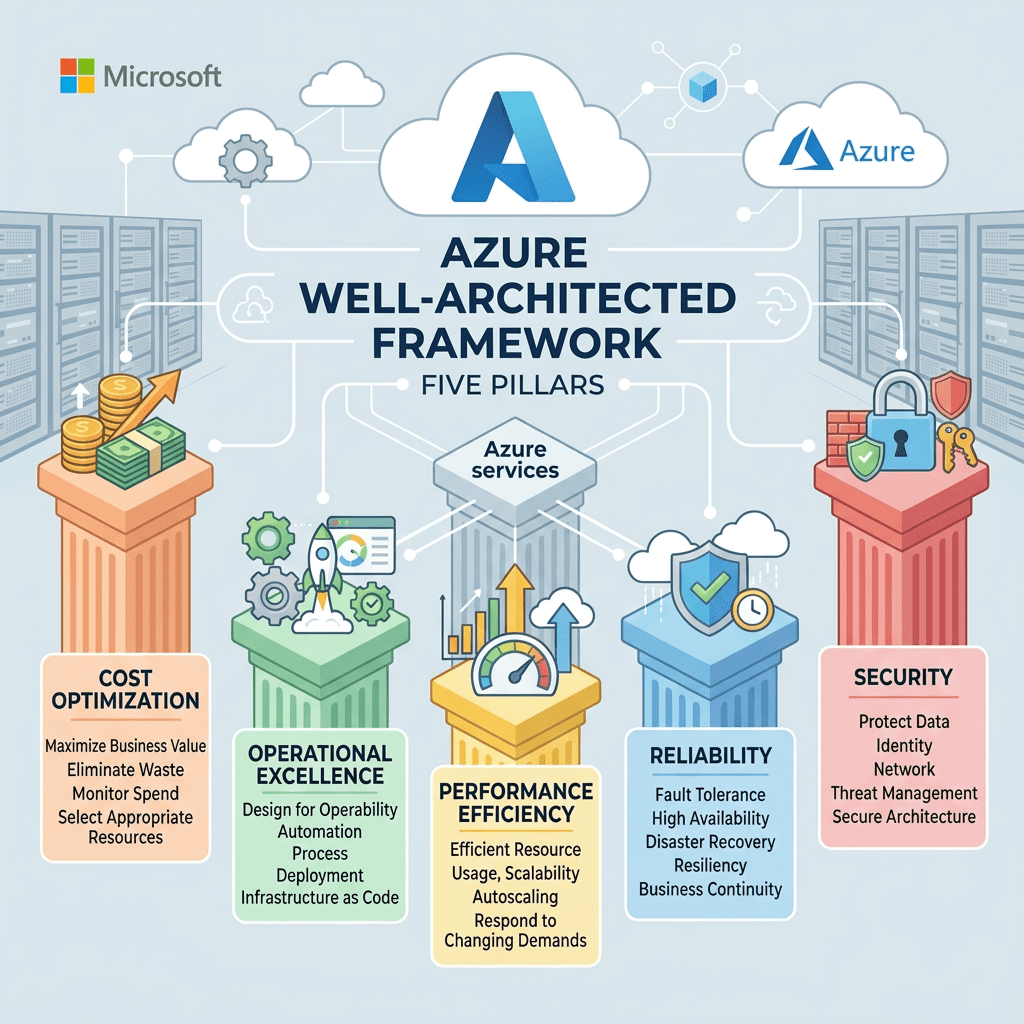
The Azure Well-Architected Framework gives architects, engineers, developers, and IT leaders a consistent way to evaluate cloud workloads, identify risks, and make better design decisions.
I do not view the framework as a checklist that should be completed once and forgotten. It is better treated as an ongoing design and operational mindset that remains part of the workload throughout its lifecycle.
What Is the Azure Well-Architected Framework?
The Azure Well-Architected Framework is a collection of design principles, recommendations, and assessment guidance that helps organizations improve the quality of workloads running in Microsoft Azure.
It is organized around five pillars: Operational Excellence, Reliability, Performance Efficiency, Cost Optimization, and Security.
The Five Pillars
Operational Excellence
Run, monitor, automate, and continually improve systems and operational processes so technology consistently delivers business value.
Reliability
Recover from disruptions, scale resources as demand changes, and reduce the effect of infrastructure, network, application, and configuration failures.
Performance Efficiency
Use computing resources efficiently to meet workload requirements and maintain that efficiency as demand and technology change.
Cost Optimization
Avoid unnecessary spending, eliminate unused resources, and make sure cloud investments continue to provide business value.
Security
Protect identities, information, applications, systems, and infrastructure through risk assessments and layered security controls.
Understanding Architectural Tradeoffs
A well-architected workload does not focus on one pillar while ignoring the others. Every major design decision can create tradeoffs between security, reliability, performance, operational complexity, and cost.
Adding redundancy may improve reliability but increase cost. Stronger security controls may add operational complexity. Increasing performance may require additional compute resources or more expensive service tiers.
Architecture Tip:
The goal is not to maximize every pillar. The goal is to make informed decisions based on workload criticality, business requirements, risk, budget, and operational capabilities.Operational Excellence
Operational Excellence focuses on running and monitoring workloads in a way that consistently delivers business value. It also includes continually improving the processes, procedures, and tools used to support the environment.
A well-operated Azure environment should be repeatable, observable, and easy to support. Teams should not depend on undocumented knowledge or lengthy manual processes to deploy, troubleshoot, or recover an application.
Key Operational Practices
- Automate deployments and repetitive administrative tasks.
- Use Infrastructure as Code to create consistent environments.
- Centralize application, infrastructure, and security monitoring.
- Create meaningful alerts that identify real operational problems.
- Maintain recovery procedures and operational runbooks.
- Use lessons learned from incidents to improve the platform.
Azure Monitor, Log Analytics, Application Insights, Azure Automation, Azure Policy, Bicep, Terraform, Azure DevOps, and GitHub Actions can support these operational goals.
Reliability
Reliability is the ability of a workload to recover from infrastructure, application, network, or service disruptions while continuing to meet business expectations.
Failures are unavoidable in distributed systems. A network connection may be interrupted, an application deployment may introduce a configuration problem, or an Azure service may become temporarily unavailable.
Key Reliability Practices
- Remove single points of failure.
- Use redundancy across critical components.
- Implement health checks and automatic failover.
- Define backup and disaster recovery strategies.
- Test recovery procedures regularly.
- Establish recovery time and recovery point objectives.
- Scale resources when demand increases.
Azure capabilities may include Availability Zones, Azure Load Balancer, Azure Front Door, zone-redundant storage, database replicas, Azure Backup, and Azure Site Recovery.
Performance Efficiency
Performance Efficiency focuses on using computing resources effectively to meet workload requirements and maintaining that efficiency as demand changes and cloud technologies evolve.
Performance is not only about making an application faster. It is about delivering predictable performance while using the right type and amount of resources.
Key Performance Practices
- Measure performance using meaningful technical and business metrics.
- Scale resources based on actual demand.
- Use caching to reduce repeated processing and database activity.
- Select the right compute platform for the workload.
- Test performance as usage patterns change.
- Review newer Azure services that may improve efficiency.
Depending on the workload, useful capabilities may include Azure App Service autoscaling, Virtual Machine Scale Sets, Azure Kubernetes Service, Azure Functions, Azure Front Door, Azure CDN, caching, and database optimization.
Cost Optimization
Cost Optimization focuses on eliminating unnecessary expenses and making sure cloud resources continue to provide appropriate value to the business.
Cloud cost management is not a one-time sizing exercise. Workloads grow, projects end, utilization changes, and resources that were appropriate several months ago may no longer be the best option.
Key Cost Practices
- Right-size resources using actual utilization data.
- Remove unused disks, snapshots, addresses, and test resources.
- Automatically shut down nonproduction environments.
- Evaluate reservations or savings plans for predictable workloads.
- Use tagging to identify workload and departmental ownership.
- Create budgets and cost alerts.
- Review Azure Advisor and Azure Cost Management recommendations.
Security
Security protects information, identities, applications, systems, and infrastructure while allowing the organization to deliver business value.
Security should be included in the original architecture rather than added after the workload is already in production. A strong design uses multiple layers of protection and applies controls based on risk.
Key Security Practices
- Use strong authentication and least-privilege access.
- Protect secrets, certificates, and credentials.
- Encrypt data at rest and in transit.
- Segment networks and limit unnecessary public access.
- Assess cloud security posture continuously.
- Collect application, infrastructure, identity, and security logs.
- Maintain an incident response and recovery process.
Common Azure capabilities include Microsoft Entra ID, role-based access control, managed identities, Azure Key Vault, Microsoft Defender for Cloud, Azure Firewall, Network Security Groups, Private Link, Azure Policy, and Microsoft Sentinel.
Cloud Architecture Design Principles
- Design applications to recover automatically from common failures.
- Remove single points of failure from critical workloads.
- Minimize unnecessary coordination between application services.
- Design applications to scale horizontally.
- Partition workloads around service and platform limits.
- Give operations teams the monitoring and management tools they need.
- Use managed Azure services when they meet workload requirements.
- Select the most appropriate data platform for each use case.
- Build architectures that can evolve as requirements change.
- Keep business requirements at the center of every design decision.
Design for Self-Healing
Failures occur in distributed systems. Applications should detect common failures and recover automatically whenever possible instead of waiting for an administrator to intervene.
Self-healing may include restarting an unhealthy application instance, replacing failed compute resources, retrying temporary service failures, or routing traffic away from an unhealthy endpoint.
Azure Monitor alerts, Application Insights, load balancer health probes, App Service health checks, Virtual Machine Scale Sets, and Kubernetes health probes can support this design approach.
Make Critical Components Redundant
Critical workloads should not depend on a single server, storage location, database instance, network path, or application endpoint.
The appropriate level of redundancy depends on workload importance. Not every application requires a multi-region architecture, but every critical dependency should be intentionally evaluated.
Best Fit:
Use Availability Zones, zone-redundant services, load balancing, backup, replication, and regional recovery options based on the workload’s availability and recovery requirements.Minimize Coordination Between Services
Applications become harder to scale when every service must wait for several other services to complete their work. Excessive coordination creates dependencies, bottlenecks, and larger failure domains.
Loosely coupled services can operate and scale more independently. Asynchronous communication can also prevent a temporary failure in one component from immediately affecting the entire application.
Azure Service Bus, Event Grid, Event Hubs, Storage Queues, asynchronous APIs, and event-driven architectures can help reduce tight service dependencies.
Design to Scale Out
Vertical scaling increases the capacity of an existing server or service instance. Horizontal scaling adds or removes instances based on workload demand.
Cloud-native applications should generally be designed to scale horizontally whenever the workload supports it. This provides greater flexibility and can improve both performance and availability.
Azure App Service autoscaling, Virtual Machine Scale Sets, Azure Kubernetes Service, Azure Functions, and Azure Container Apps can support horizontal scaling models.
Partition Around Platform Limits
Every Azure service has limits related to capacity, throughput, connections, transactions, or resource counts. Architects should understand those limits before they become production bottlenecks.
Partitioning distributes workloads across multiple resources. Depending on the application, this may involve dividing databases, storage accounts, networks, tenants, subscriptions, or compute environments.
Design for Operations
An application is not operationally ready simply because it deploys successfully. The operations team must be able to monitor its health, investigate problems, manage changes, and recover it when something goes wrong.
Logging, dashboards, alerts, runbooks, dependency mapping, deployment records, and recovery procedures should be considered during the design phase, not after the first production incident.
Use Managed Services
Platform as a Service offerings can reduce the amount of infrastructure an organization must patch, monitor, back up, and maintain.
This allows teams to spend more time improving applications and less time managing operating systems and supporting infrastructure.
Azure App Service, Azure SQL Database, Azure Functions, Azure Container Apps, Azure Key Vault, Azure Service Bus, and Cosmos DB are examples of managed services that can reduce operational overhead.
Use the Right Data Store for the Job
No single database or storage platform is ideal for every application. Transactional workloads, analytics platforms, file repositories, caching layers, and globally distributed applications all have different requirements.
Architects should evaluate data structure, access patterns, consistency, latency, transactions, retention, geographic distribution, security, and cost before selecting a data platform.
- Azure SQL Database: Relational and transactional application data
- Azure Cosmos DB: Globally distributed NoSQL workloads
- Azure Blob Storage: Object and unstructured data
- Azure Data Lake Storage: Large-scale analytics data
- Azure Managed Redis: Application caching and low-latency access
Best Practices
- Define business and technical requirements before selecting Azure services.
- Automate deployments using Infrastructure as Code.
- Design workloads to recover automatically from common failures.
- Remove single points of failure from critical application paths.
- Use horizontal scaling where the application supports it.
- Implement centralized monitoring, logging, and alerting.
- Use managed identities instead of storing credentials in code.
- Encrypt sensitive data and restrict unnecessary public access.
- Review resource utilization and cloud spending regularly.
- Test backup, failover, and disaster recovery procedures.
- Use managed Azure services when they meet business and technical requirements.
- Review the architecture as the workload and business evolve.
Questions to Ask Before Designing a Workload
- How much downtime can the business tolerate?
- How much data loss is acceptable?
- How quickly could workload demand increase?
- What security and compliance requirements apply?
- What data is considered sensitive?
- Who will operate and support the environment?
- What is the expected budget?
- What does success look like to the business?
Clear answers make it easier to determine where redundancy is required, which security controls are appropriate, how much automation is necessary, and which Azure services provide the right balance between capability and cost.
Applying the Framework to Existing Workloads
The Azure Well-Architected Framework is not limited to new deployments. It can also be used to assess and improve existing Azure environments.
A practical review can examine workload architecture, service dependencies, availability, disaster recovery, identity, security, networking, monitoring, operational procedures, performance, scalability, automation, and cloud spending.
The result should be a prioritized improvement plan based on business impact and risk, not simply a long list of recommendations with no clear path forward.
Final Thoughts
The Azure Well-Architected Framework is not only for large enterprises or complex cloud platforms. The same principles can improve a small application, development environment, hybrid infrastructure deployment, or business-critical enterprise workload.
In my experience working with cloud migrations, infrastructure modernization, virtualization platforms, storage, and disaster recovery, the strongest designs are usually the ones that address operational needs early.
Monitoring, backup, security, cost ownership, recovery, automation, and support processes should not be left until the end of the project.
A cloud solution can be technically functional and still be difficult to operate, expensive to maintain, or unable to recover from failure. Applying the five pillars throughout the workload lifecycle helps reduce those risks.
The goal is not to build the most complicated architecture. The goal is to build an architecture that securely and reliably delivers the value the business needs and can continue doing so as requirements change.
Need Help Designing Well-Architected Azure Environments?
MB Technology Group LLC helps organizations assess, design, deploy, secure, and optimize cloud infrastructure across Microsoft Azure, AWS, virtualization platforms, storage, disaster recovery, and hybrid environments.
-
Azure App Service Overview
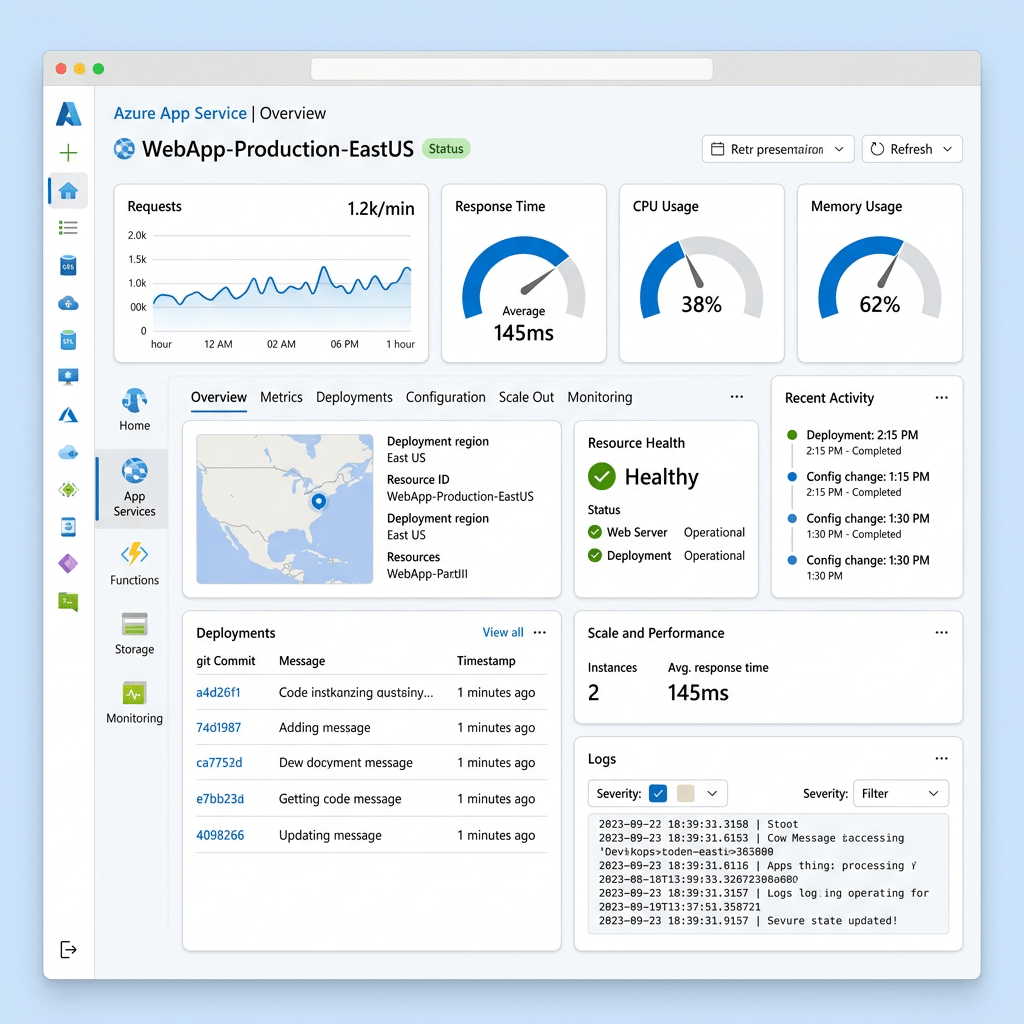
Azure App Service Overview
A practical look at Microsoft’s fully managed platform for building, hosting, scaling, and securing modern web applications, APIs, and mobile back ends.
By Christian Marrero Bonilla | Daily Cloud Blog
Azure App Service is one of the most commonly used Platform as a Service offerings in Microsoft Azure. It allows organizations to deploy web applications, REST APIs, and mobile back ends without having to manage the underlying servers, operating system patching, load balancing, or core infrastructure components.
Instead of spending time building and maintaining virtual machines, teams can focus on application code, deployment pipelines, security, performance, and business functionality. For many organizations, App Service becomes the first step toward modernizing traditional web applications and moving them into a cloud-native operating model.
What Is Azure App Service?
Azure App Service is a fully managed hosting platform for web applications. It supports popular development stacks such as .NET, Java, Node.js, Python, PHP, and container-based workloads. Developers can deploy code directly from source control, CI/CD pipelines, ZIP packages, containers, or DevOps platforms.
Why Organizations Use Azure App Service
Managed Infrastructure
Microsoft manages the platform, reducing the operational burden of server maintenance, patching, and infrastructure lifecycle management.
Built-In Scalability
Applications can scale up to larger compute sizes or scale out across multiple instances based on performance and availability needs.
Deployment Flexibility
Teams can deploy through Azure DevOps, GitHub Actions, containers, FTP, ZIP deployments, or direct source control integration.
Security Integration
App Service integrates with Microsoft Entra ID, managed identities, private endpoints, custom domains, TLS certificates, and application settings.
Understanding the App Service Plan
Every App Service application runs inside an App Service Plan. The plan defines the compute resources, region, operating system, pricing tier, scaling capabilities, and overall capacity available to the application.
Multiple applications can run inside the same App Service Plan, which can be useful for cost optimization. However, all apps in the same plan share the same compute resources. This means that a poorly performing or resource-heavy app can impact other apps hosted in that same plan.
Architecture Tip:
Separate production, development, and critical workloads into different App Service Plans when performance isolation, security boundaries, or cost visibility are important.Key Features of Azure App Service
1. Deployment Slots
Deployment slots allow teams to deploy a new version of an application into a separate slot, such as staging, before swapping it into production. This helps reduce downtime and provides a safer release process.
2. Autoscaling
App Service supports scaling based on workload demand. You can scale vertically by moving to a larger pricing tier or scale horizontally by adding more instances.
3. Custom Domains and TLS
Organizations can map custom domains to their applications and secure traffic using TLS certificates. This is important for production workloads, customer-facing portals, and APIs.
4. Managed Identity
Managed identities allow an App Service application to securely access Azure resources such as Azure SQL Database, Key Vault, and Storage Accounts without storing credentials in code.
5. Monitoring and Diagnostics
App Service integrates with Azure Monitor, Application Insights, diagnostic logs, metrics, and alerts. This gives teams better visibility into application performance, availability, and troubleshooting data.
Common Use Cases
- Hosting enterprise web applications
- Running REST APIs and backend services
- Modernizing legacy IIS-based applications
- Hosting internal business portals
- Deploying containerized web apps
- Building proof-of-concept and production SaaS applications
App Service vs Virtual Machines
Traditional virtual machines give administrators full control over the operating system, runtime, and configuration. That level of control can be useful, but it also increases management overhead.
Azure App Service removes much of that infrastructure responsibility. For many web applications, this is a better operational model because teams no longer need to manage OS patching, IIS configuration, server availability, or manual scaling.
Best Fit:
Azure App Service is ideal when you want a managed platform for web workloads and do not need deep operating system-level customization.Security Considerations
Security should be part of the design from the beginning. At a minimum, production App Service environments should use HTTPS-only access, managed identities, secure application settings, least-privilege access, monitoring, and integration with Microsoft Defender for Cloud where appropriate.
For more sensitive workloads, organizations should evaluate private endpoints, VNet integration, Key Vault references, IP restrictions, Web Application Firewall integration through Application Gateway or Front Door, and separate App Service Plans for workload isolation.
Best Practices
- Use deployment slots for safer production releases.
- Enable Application Insights for performance visibility.
- Use managed identity instead of storing secrets in code.
- Store sensitive values in Azure Key Vault.
- Separate production workloads from development and test workloads.
- Right-size the App Service Plan to avoid unnecessary cost.
- Use autoscaling for applications with variable traffic patterns.
- Secure public applications with custom domains, TLS, and WAF integration when needed.
Final Thoughts
Azure App Service is a strong option for organizations that want to modernize application hosting without taking on the operational overhead of managing servers. It provides a balance between simplicity, scalability, security, and enterprise integration.
For small teams, it can accelerate cloud adoption. For larger organizations, it can standardize web application hosting while integrating with existing Azure governance, identity, security, monitoring, and DevOps processes.
The key is designing it properly from the beginning. App Service is easy to deploy, but production-ready architecture still requires planning around networking, identity, security, monitoring, scaling, backup, cost management, and operational ownership.
Need Help Designing Azure App Service Environments?
MB Technology Group LLC helps organizations design, deploy, secure, and optimize cloud infrastructure across Microsoft Azure, AWS, virtualization platforms, and hybrid environments.
-
Migrating VMware to Nutanix AHV: Best Practices and Pitfalls to Avoid
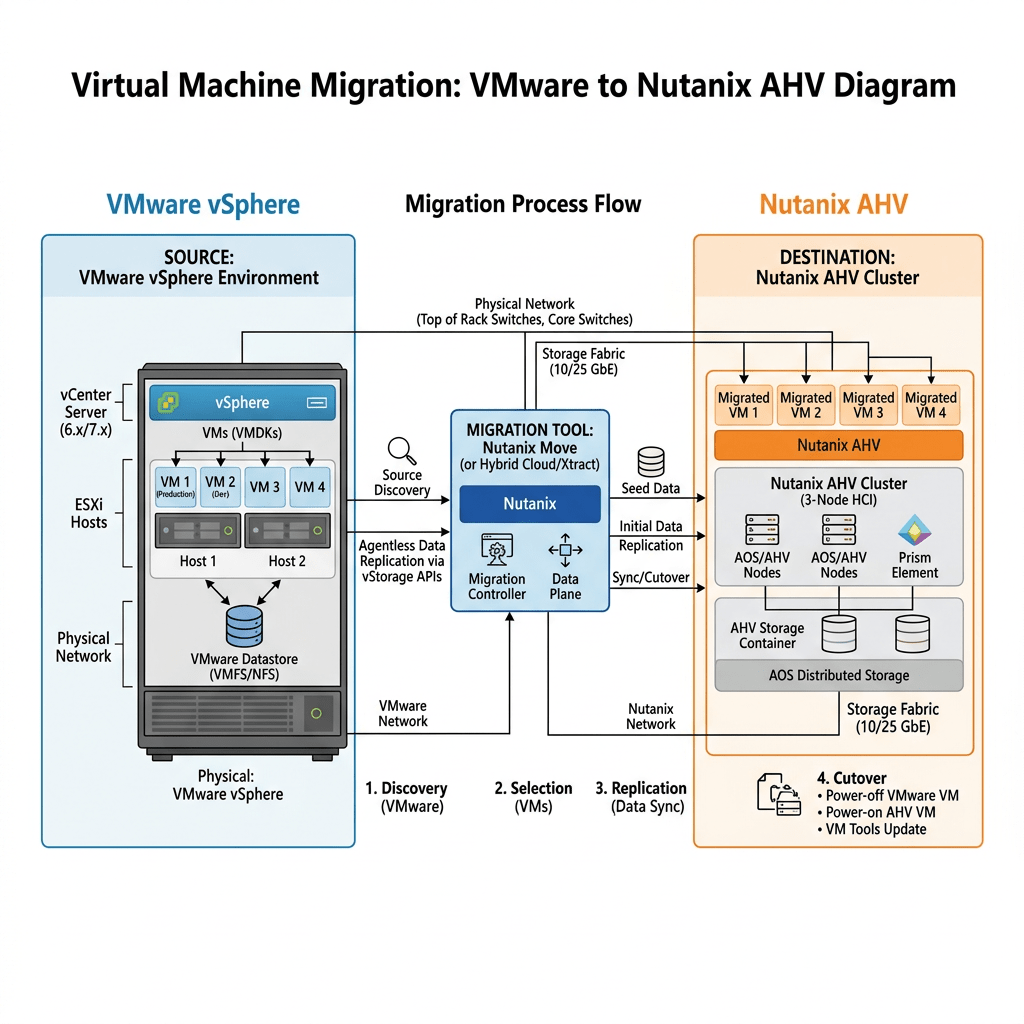
Virtualization • Hybrid Cloud • Nutanix AHV
Migrating VMware to Nutanix AHV: Best Practices and Pitfalls to Avoid
A practical field guide for planning, validating, and executing a clean VMware vSphere to Nutanix AHV migration with less risk, better visibility, and fewer surprises.
By Daily Cloud Blog • Updated for 2026 migration planning
With rising VMware licensing pressure, platform modernization initiatives, and the growing need for operational simplicity, many organizations are evaluating Nutanix AHV as a strategic alternative for virtualization and hybrid cloud operations. However, a VMware-to-AHV migration should not be treated as a simple “lift and shift.” The hypervisor changes, the VM drivers change, the networking model changes, operational tooling changes, and backup, disaster recovery, monitoring, automation, and support processes must be validated.
Key takeaway: A successful VMware to Nutanix AHV migration is not only about moving virtual machines. It is about modernizing the operating model while protecting uptime, data integrity, performance, and business continuity.1. Start With Assessment, Not Migration
The biggest mistake organizations make is starting with migration tooling before they understand the environment. Before building a Nutanix Move migration plan, perform a full workload assessment.
Inventory
Document all VMs, operating systems, CPU, memory, disk layout, snapshots, VMware Tools status, and business ownership.
Dependencies
Map application, database, DNS, AD, firewall, load balancer, and external service dependencies.
Performance
Collect CPU, memory, IOPS, latency, throughput, and growth trends before sizing the Nutanix target cluster.
Risk
Identify legacy operating systems, unsupported applications, physical dependencies, hard-coded IPs, and outage-sensitive workloads.
2. Design the Nutanix AHV Landing Zone First
Before migrating workloads, the AHV environment must be production-ready. This includes Prism Central, network segmentation, storage containers, image management, role-based access, monitoring, backup integration, and disaster recovery design.
Core AHV Landing Zone Checklist
- Validate Nutanix cluster health, AOS version, AHV version, firmware, NCC checks, and support readiness.
- Configure Prism Central for centralized management, policies, categories, and reporting.
- Map VMware port groups to AHV networks and confirm VLAN tagging, routing, firewall rules, and MTU settings.
- Design storage containers based on workload requirements, protection policies, and operational separation.
- Confirm DNS, NTP, Active Directory, identity, logging, alerting, and SMTP notifications.
- Integrate backup and recovery tooling before production cutover.
- Document rollback and recovery procedures for every migration wave.
3. Use Nutanix Move, But Do Not Rely on It Alone
Nutanix Move is commonly used to migrate VMs from VMware ESXi to Nutanix AHV. It helps automate migration tasks such as VM replication, cutover workflow, VirtIO driver handling, and IP address retention or mapping.
Important: Migration tools simplify the move, but they do not replace design validation, app-owner coordination, backup testing, dependency mapping, or rollback planning.Best Practice for Nutanix Move
- Deploy Nutanix Move close to the destination Nutanix environment.
- Start with a small pilot group of low-risk VMs.
- Validate VMware credentials, vCenter access, AHV destination access, network mappings, and storage container placement.
- Confirm guest OS compatibility and VirtIO driver readiness.
- Run test migrations before business-critical workloads.
- Schedule cutovers during approved maintenance windows.
- Validate application functionality after cutover, not just VM power-on state.
4. Build Migration Waves Around Applications, Not Random VMs
A clean migration strategy groups workloads by business application, dependency, risk level, outage tolerance, and rollback complexity.
Wave Workload Type Purpose Wave 0 Test VMs Validate tooling, networking, drivers, and operational process. Wave 1 Low-risk systems Build confidence and refine the migration runbook. Wave 2 Departmental apps Migrate moderate-risk workloads with known owners. Wave 3 Business-critical apps Execute only after validation, backup, rollback, and app testing are proven. 5. Best Practices for VMware to Nutanix AHV Migration
Validate VM Hardware and Guest OS Readiness
Check each VM for guest OS support, disk configuration, VMware Tools status, snapshots, attached ISO files, RDMs, USB passthrough, legacy drivers, and special boot configurations.
Clean Up Before You Move
Remove stale snapshots, orphaned disks, unused NICs, old ISOs, powered-off zombie VMs, and overprovisioned resources. Migrating technical debt simply moves the problem to a new platform.
Right-Size the Workloads
Do not blindly copy VMware allocations into AHV. Use utilization data to right-size vCPU, memory, and storage. This improves density, performance, and cost efficiency.
Map Networks Carefully
VMware port groups and AHV networks are not the same operational construct. Validate VLAN IDs, IP retention, firewall rules, DNS, load balancer pools, DHCP reservations, and security policies before cutover.
Test Backups Before Production Migration
Ensure your backup platform supports Nutanix AHV and that restore procedures are tested. A migration is not complete until backup, recovery, and retention policies are confirmed.
Document Cutover and Rollback
Every wave should have a migration owner, app owner, test plan, communication plan, validation checklist, rollback trigger, and business sign-off.
6. Common Pitfalls to Avoid
Skipping Dependency Mapping
Moving an app server without its database, firewall rules, or DNS dependencies can create avoidable outages.
Ignoring Legacy Systems
Older operating systems may require special driver, boot, or support considerations before AHV migration.
No Rollback Plan
If the cutover fails, the team must know exactly when to stop, how to revert, and who approves the rollback.
Assuming Backups Still Work
Backup jobs, restore procedures, and retention policies must be revalidated after moving from VMware to AHV.
Weak Communication
Application owners, help desk teams, security teams, and business units need clear migration windows and escalation paths.
Post-Migration Validation Gaps
A VM powering on is not enough. Validate login, application workflow, database connectivity, performance, monitoring, and backups.
7. Recommended Migration Runbook
- Discovery: Collect inventory, performance data, app dependencies, and business ownership.
- Design: Prepare the AHV landing zone, networking, storage, backup, monitoring, and access controls.
- Pilot: Migrate test workloads and validate tooling, drivers, IP retention, and application access.
- Wave Planning: Group VMs by application, dependency, risk, and outage tolerance.
- Pre-Cutover: Confirm backups, freeze changes, notify stakeholders, and validate rollback steps.
- Cutover: Execute migration during an approved window and document every action.
- Validation: Confirm application functionality, performance, monitoring, backups, and user access.
- Optimization: Right-size resources, update documentation, and decommission legacy VMware components when safe.
Final Pre-Migration Checklist
- VM inventory completed and validated
- Application dependencies documented
- Nutanix AHV cluster health verified
- Prism Central configured
- VLAN and network mappings confirmed
- Guest OS and driver readiness validated
- Backup and restore tested
- Migration waves approved
- Maintenance windows scheduled
- Rollback plan documented
- Application owners assigned for validation
- Post-migration monitoring enabled
Final Thoughts
Migrating from VMware to Nutanix AHV can simplify operations, reduce hypervisor complexity, and position the organization for a more flexible hybrid cloud model. But the migration must be treated as a structured transformation, not a basic VM copy process.
The organizations that succeed are the ones that assess first, design the landing zone properly, migrate in controlled waves, validate every application, and avoid carrying old operational problems into the new platform.
Need Help Planning a VMware to Nutanix AHV Migration?
MB Technology Group LLC can help organizations assess VMware environments, design Nutanix AHV landing zones, create migration runbooks, validate dependencies, and execute production migrations with confidence.
Microsoft Entra ID Best Practices – Strengthening Identity Security in the Modern Enterprise
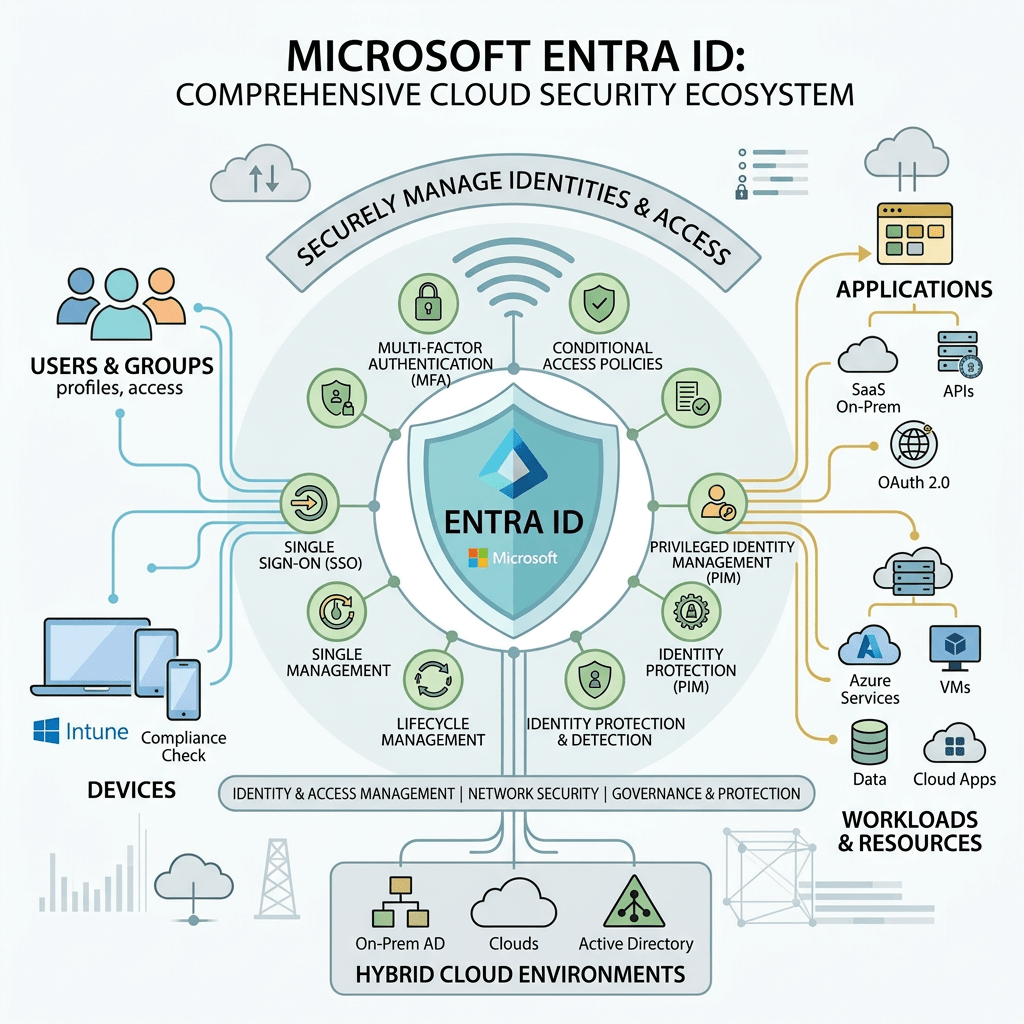
Microsoft Entra ID Best Practices
Building a modern Zero Trust identity architecture with Microsoft Entra ID to improve authentication, governance, access control, and enterprise security posture.
By Daily Cloud Blog | Identity Security | Zero Trust | Cloud SecurityOverview
Identity has become the new security perimeter in today’s cloud-first enterprise. Organizations are rapidly adopting hybrid and multi-cloud architectures, remote work models, SaaS applications, and Zero Trust security strategies.
Microsoft Entra ID provides the identity and access management platform required to secure users, applications, workloads, and devices across modern enterprise environments.
In this article, we will go over Microsoft Entra ID best practices around authentication, Conditional Access, governance, privileged access, monitoring, and Zero Trust identity security.
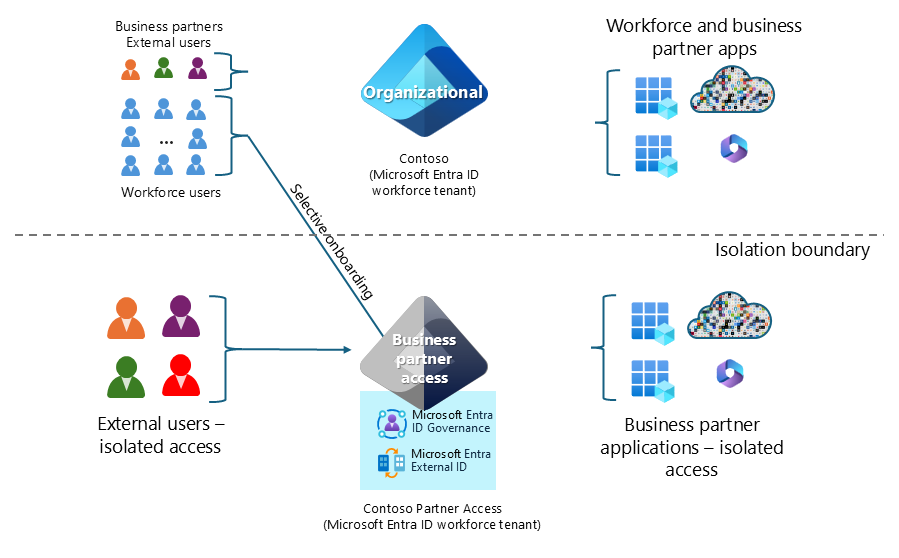
1. Enforce Multi-Factor Authentication (MFA)
Multi-Factor Authentication is one of the most important security controls organizations can implement within Microsoft Entra ID.
Recommended MFA Strategy
- Require MFA for all users
- Enforce MFA for privileged administrators
- Implement phishing-resistant authentication methods
- Use passwordless authentication whenever possible
- Require MFA for remote and external access
Microsoft recommends modern authentication methods such as Windows Hello for Business, FIDO2 security keys, Passkeys, and Microsoft Authenticator passwordless authentication.
2. Use Conditional Access Policies
Conditional Access is considered the policy engine behind Microsoft’s Zero Trust architecture.
Recommended Conditional Access Policies
- Block legacy authentication protocols
- Require MFA for risky sign-ins
- Restrict access from unmanaged devices
- Require compliant devices for corporate applications
- Implement geographic access restrictions
- Protect privileged role sign-ins with stronger controls
Organizations should always use Report-Only mode before fully enforcing new Conditional Access policies in production environments.
3. Disable Legacy Authentication
Legacy authentication protocols such as POP3, IMAP, SMTP AUTH, and Basic Authentication are frequently targeted during password spray and credential-based attacks.
Security Recommendation:Disable legacy authentication across the organization unless there is a documented business requirement and approved exception process.
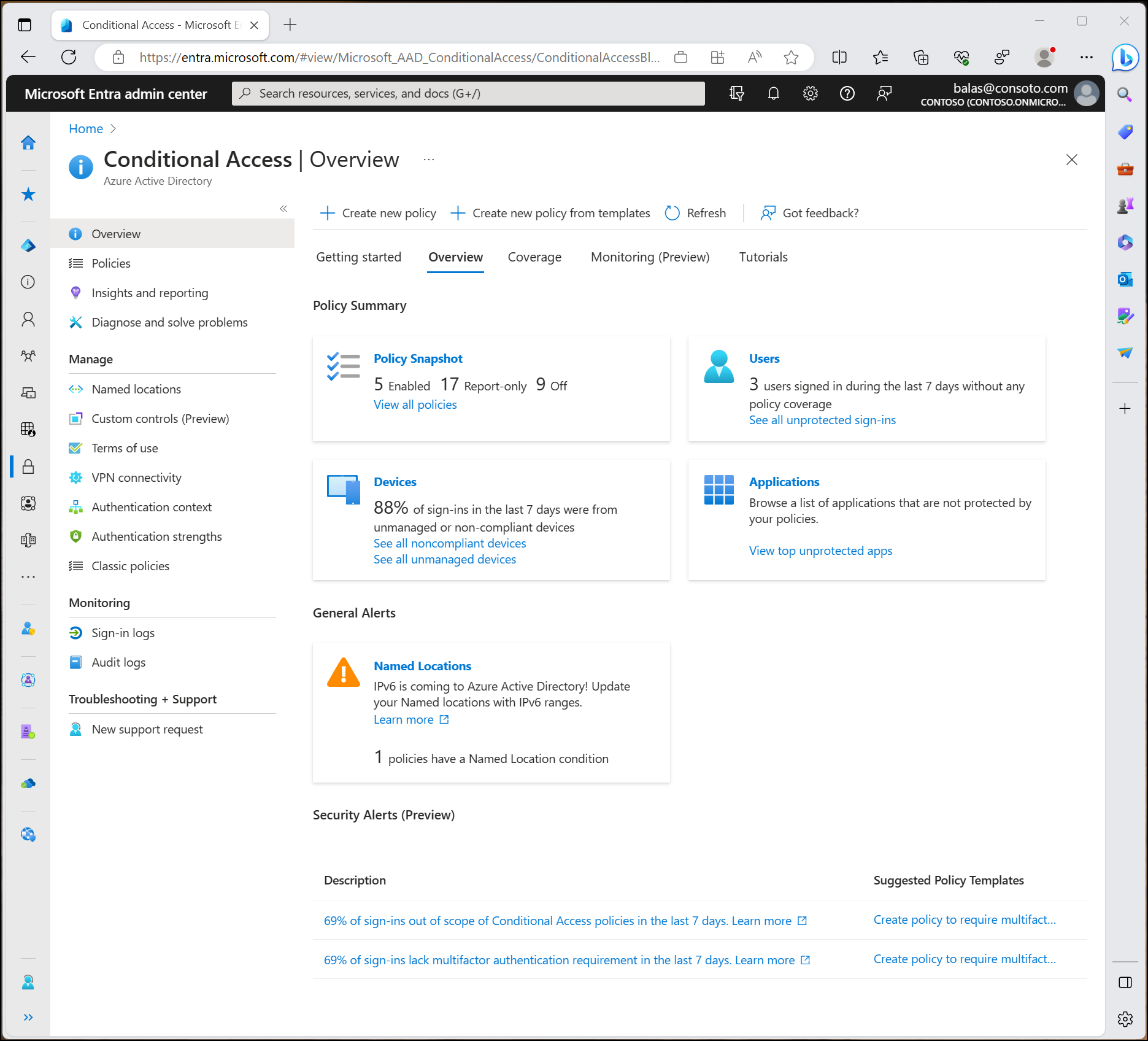
4. Implement Least Privilege Access
Administrative privilege sprawl is one of the most common security weaknesses in enterprise environments.
Best Practices
- Limit Global Administrator accounts
- Use Role-Based Access Control (RBAC)
- Separate administrative and standard user accounts
- Use custom roles whenever possible
- Review permissions regularly
5. Use Privileged Identity Management (PIM)
Microsoft Entra Privileged Identity Management (PIM) reduces standing administrative access by enabling Just-In-Time (JIT) privilege elevation.
Recommended PIM Configuration
- Require approval for elevation
- Require MFA before activation
- Configure activation time limits
- Enable role activation alerts
- Review privileged role assignments regularly
6. Secure Administrative Accounts
Administrative accounts should be highly secured and isolated from standard user activities.
Administrative Security Recommendations
- Use dedicated admin accounts only
- Implement Privileged Access Workstations (PAWs)
- Avoid email and web browsing from admin accounts
- Monitor administrator sign-ins continuously
- Maintain break-glass emergency access accounts
7. Enable Identity Protection
Microsoft Entra ID Protection uses machine learning and Microsoft threat intelligence to detect risky users and suspicious sign-in activity.
Examples of Risk Detection
- Impossible travel detection
- Anonymous IP usage
- Password spray attacks
- Leaked credentials
- Malware-linked sign-ins

8. Monitor and Audit Continuously
Visibility and monitoring are critical components of modern identity security.
Monitoring Recommendations
- Enable Sign-In Logs
- Enable Audit Logs
- Integrate with Microsoft Sentinel
- Configure alerting for risky activities
- Monitor OAuth application permissions
- Track privilege escalation events
9. Secure External Collaboration (B2B)
Guest users and external collaboration must be governed carefully to avoid unnecessary exposure.
B2B Security Best Practices
- Require MFA for guest users
- Restrict guest permissions
- Use Access Reviews
- Implement Terms of Use policies
- Limit external sharing capabilities
Recommended Microsoft Entra ID Security Architecture
- Conditional Access + MFA Everywhere
- Passwordless Authentication
- Privileged Identity Management (PIM)
- Microsoft Defender XDR Integration
- Microsoft Sentinel SIEM Monitoring
- Identity Protection Risk Policies
- Zero Trust Security Framework
- Continuous Governance and Auditing
Final Thoughts
Microsoft Entra ID plays a critical role in securing modern enterprise environments and enabling Zero Trust security strategies.
Organizations that properly implement strong authentication, Conditional Access, privileged identity governance, monitoring, and risk-based security controls can dramatically reduce identity-related threats and improve their overall cloud security posture.
As organizations continue their cloud adoption journey, identity security will remain one of the most important pillars for protecting applications, users, data, and business operations.
Stay Connected with Daily Cloud Blog
If you found this comparison helpful, follow Daily Cloud Blog for more practical content on cloud, virtualization, DevOps, cybersecurity, and infrastructure strategy.
We regularly share technical breakdowns, architecture guidance, and real-world insights designed for engineers, architects, and IT leaders.
Want more posts like this? Subscribe for fresh content on AWS, Azure, Kubernetes, virtualization, and modern infrastructure trends.
Daily Cloud Blog
Covering Cloud, Security, Infrastructure, Hybrid Cloud, Virtualization, DevOps, Containers, AI, and Enterprise Technology.
© 2026 Daily Cloud Blog | Microsoft Entra ID | Zero Trust | Identity SecurityUnderstanding Microsoft GCC and GCC High
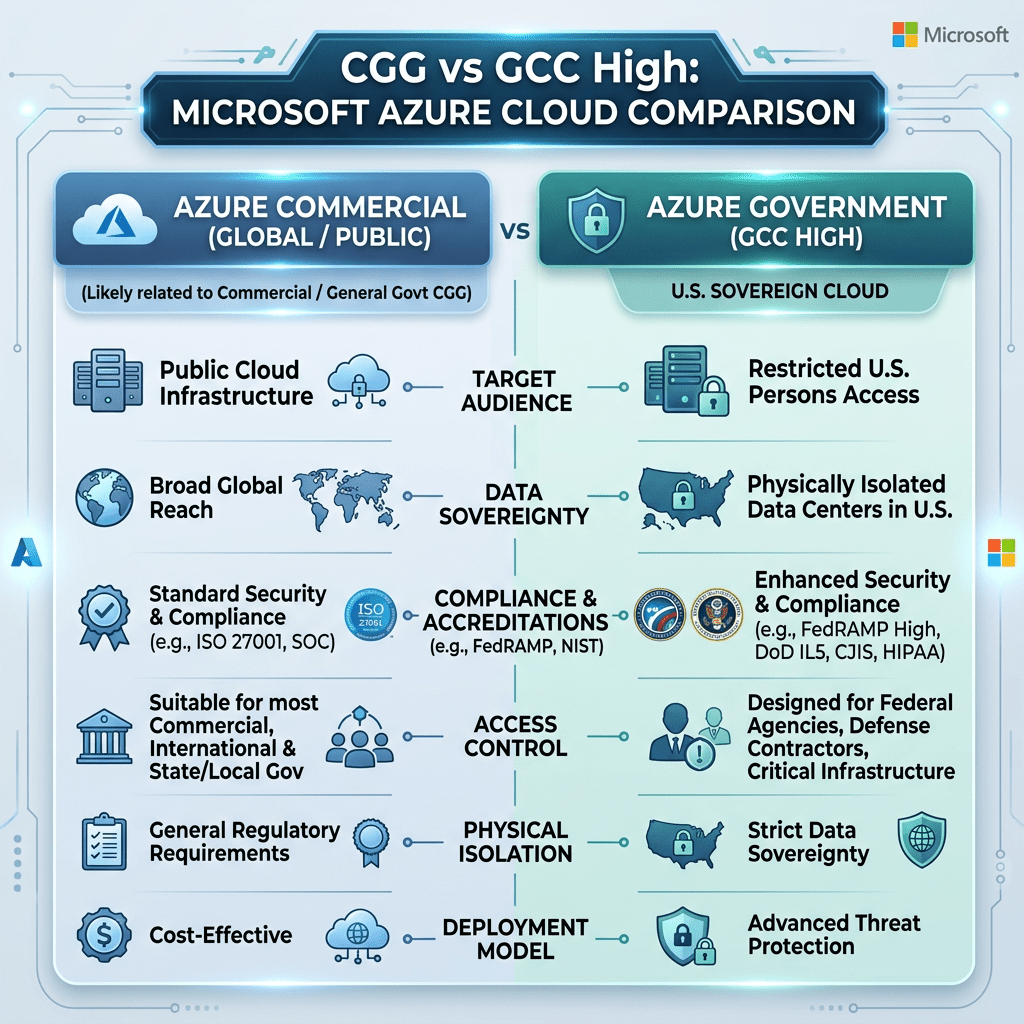
Understanding Microsoft GCC and GCC High
A practical overview of Microsoft Government Cloud environments, where they fit, and why they matter for public sector, defense, and regulated organizations.
By Daily Cloud Blog
Why GCC and GCC High Matter
As more government agencies, defense contractors, and regulated businesses move to the cloud, choosing the right Microsoft cloud environment becomes a critical decision.
Microsoft offers specialized government cloud environments designed to support compliance, security, data residency, and operational control requirements.Two of the most common environments are Microsoft GCC and Microsoft GCC High. While they sound similar, they are designed for different levels of compliance and risk.
What is Microsoft GCC?
GCC, or Government Community Cloud, is a Microsoft 365 government cloud environment designed for U.S. federal, state, local, tribal government organizations, and approved government contractors.
GCC is commonly used for:
- State and local government agencies
- Federal civilian agencies
- Public sector organizations
- Government contractors handling regulated data
- Organizations needing FedRAMP Moderate alignment
GCC provides stronger compliance controls than commercial Microsoft 365, while still maintaining broader service availability and easier collaboration compared to GCC High.
What is Microsoft GCC High?
GCC High is a more restricted and isolated Microsoft cloud environment designed for organizations with higher compliance requirements, especially those supporting the U.S. Department of Defense.
GCC High is commonly used for:
- Defense contractors
- Aerospace companies
- DoD suppliers
- Organizations handling ITAR data
- Organizations handling Controlled Defense Information
- Companies preparing for CMMC requirements
GCC High is built for organizations that need stronger isolation, U.S. person support requirements, and alignment with more demanding defense-related compliance obligations.
GCC vs GCC High: Key Differences
Identity and Access Differences
One of the most important differences between commercial Microsoft 365, GCC, and GCC High is identity architecture.
GCC High uses different government cloud endpoints and requires careful planning for authentication, application integrations, conditional access, and external collaboration.Example Endpoint Difference
Commercial / GCC: login.microsoftonline.com
GCC High: login.microsoftonline.us
When Should You Choose GCC?
GCC may be the right fit when your organization needs government cloud compliance but does not require the stricter defense-focused controls of GCC High.
- You are a state, local, or civilian government organization
- You need FedRAMP Moderate alignment
- You handle general government data
- You need easier collaboration with commercial Microsoft 365 users
- You want broader Microsoft 365 feature availability
When Should You Choose GCC High?
GCC High is usually the better option when your organization supports the DoD or handles highly regulated defense-related information.
- You handle ITAR data
- You support DoD contracts
- You handle Controlled Defense Information
- You need stronger DFARS alignment
- You are preparing for CMMC requirements
- You need tighter tenant isolation and government-only service boundaries
Migration Considerations
Moving from commercial Microsoft 365 to GCC or GCC High is not a simple license change. It is a full tenant migration and architecture effort.
- Identity and Entra ID redesign
- Email and SharePoint migration
- Teams and collaboration planning
- Intune and endpoint management rebuild
- Security baseline configuration
- Third-party application validation
- Compliance documentation and governance
Final Thoughts
GCC and GCC High are not one-size-fits-all solutions. The right decision depends on your compliance obligations, customer requirements, data sensitivity, and long-term cloud strategy.
For many organizations, GCC provides the right balance between compliance and usability. For defense contractors and organizations handling ITAR, DFARS, or DoD-related data, GCC High may be the safer and more appropriate cloud environment.
Need Help Planning a GCC or GCC High Strategy?
MB Technology Group LLC can help organizations assess cloud readiness, plan secure Microsoft 365 government cloud migrations, and design identity, security, and compliance architectures for regulated environments.
About Daily Cloud Blog
Daily Cloud Blog focuses on cloud architecture, hybrid cloud, Microsoft Azure, AWS, security, infrastructure modernization, and enterprise technology strategy.
Home
1–2 minutes

![[ Ceph ] 基本概念、原理及架构 - hukey - 博客园](https://images.openai.com/static-rsc-4/zbbC8KJEFlzvtbfWT8lcxMFX40riddgZWEGc0frW05avuo-ffIVaDOwhi9aeLn2BnAKTSFvz8KNz_QrQZtgNxrZi0aRusF5LJ1ioPPoPIxZQE2GaXvZxIzUKZSsovhejqtIdA8A7mTDRlHK3fObJn3HWtDfzhhaUD_w4cefDbp_NsHds_5aFENR-NBliMtew?purpose=fullsize)

