-
S3 Bucket Policy Misconfigurations Leading to Data Exfiltration

S3 Bucket Policy Misconfigurations Leading to Data Exfiltration
Cloud Exploit Series • Daily Cloud BlogDifficulty: Intermediate • Cloud: AWS • Focus: S3 / Bucket Policy
How small policy mistakes expose enterprise data — and how to lock them down properly.
Ethical Use Notice: For authorized testing and defensive validation only.
Test only environments you own or have explicit written permission to assess.Executive Overview
Amazon S3 is one of the most frequently misconfigured services in AWS environments.
While AWS provides strong security controls, improper bucket policies, ACLs,
or cross-account permissions can expose sensitive data.- Impact: Public data exposure, cross-account data exfiltration
- Root cause: Overly permissive bucket policies or ACLs
- Mitigation: Block Public Access + strict IAM + logging
Target Architecture
Attacker Identity
       |
       v
  S3 Bucket Policy
       |
       v
   Sensitive Data
       |
       v
Exfiltration (Download / Sync)
The risk often comes from unintended trust relationships or wildcard principals.
Attack Assumptions
- Bucket policy allows broad principal access
- Public access block disabled or misconfigured
- IAM role/user has unexpected read access
- Logging is not actively monitored
Exploit Walkthrough (Lab Validation)
Common Misconfiguration #1 — Public Read Access
{
  "Effect": "Allow",
  "Principal": "*",
  "Action": "s3:GetObject",
  "Resource": "arn:aws:s3:::example-bucket/*"
}
This allows anyone on the internet to download objects if public access block is disabled.
Common Misconfiguration #2 — Overly Broad Cross-Account Trust
{
  "Effect": "Allow",
  "Principal": {
    "AWS": "arn:aws:iam::111122223333:root"
  },
  "Action": "s3:*",
  "Resource": "arn:aws:s3:::example-bucket/*"
}
Entire external account can access and potentially modify bucket contents.
Lab Validation
aws s3 ls s3://example-bucket
aws s3 sync s3://example-bucket ./downloaded-data
If successful from an unintended identity, data exfiltration is confirmed.
Advanced Attack Chain Scenario
- Compromised EC2 role (via metadata abuse)
- Role has read access to sensitive S3 bucket
- Attacker downloads database backups
- Logs not actively monitored
S3 often becomes the final stage of cloud data exfiltration.
Detection Strategy
- Enable S3 server access logging
- Monitor unusual GetObject spikes
- CloudTrail: ListBucket, GetObject events
- GuardDuty: UnauthorizedAccess:S3 findings
# Example detection logic
IF eventSource = s3.amazonaws.com
AND eventName IN (GetObject, ListBucket)
AND requestor NOT in approved principals
THEN alert
Mitigation Strategy
- Enable S3 Block Public Access (account-wide)
- Avoid wildcard principals
- Restrict cross-account access with conditions
- Use IAM Access Analyzer
- Enable versioning + MFA delete for sensitive buckets
Terraform Secure Baseline
resource "aws_s3_bucket" "secure_bucket" {
  bucket = "secure-example-bucket"

  versioning {
    enabled = true
  }
}

resource "aws_s3_bucket_public_access_block" "block_public" {
  bucket = aws_s3_bucket.secure_bucket.id

  block_public_acls   = true
  block_public_policy = true
  ignore_public_acls  = true
  restrict_public_buckets = true
}
Key Takeaways
- S3 misconfigurations remain a leading cause of cloud breaches
- Wildcard principals are dangerous
- Always enable Block Public Access
- Monitor access patterns — not just permissions
Next in the Cloud Exploit Series:
Exploiting Over-Permissive Lambda Execution Roles
Want More Offensive Cloud Research?
Subscribe to Daily Cloud Blog for deep-dive cloud attack path analysis,
secure Terraform patterns, and enterprise-ready defensive strategies.Abusing AWS IAM Trust Policies for Privilege Escalation
Daily Cloud Blog • Cloud Exploit Series
Abusing AWS IAM Trust Policies for Privilege Escalation
Cloud Exploit Series • Daily Cloud BlogDifficulty: Intermediate • Cloud: AWS • Focus: IAM / STS
What you’ll learn: How a single misconfigured role trust policy can let a low-priv identity assume a stronger role —
and exactly how to detect and prevent it.Ethical Use Notice: This is for authorized testing, defensive validation, and education only.
Do not use against systems you do not own or explicitly have permission to assess.In this post
- Executive overview
- Target architecture
- Attack assumptions
- Exploit walkthrough (lab validation)
- Detection strategy
- Mitigation strategy
- Terraform secure baseline
- Key takeaways
Executive overview
In AWS, permissions are only half the story. A role can have a perfect permission policy, but if its trust policy
(who is allowed to assume it) is too broad, you’ve created a privilege-escalation path.- Impact: Low-priv identity can become a high-priv role (data access, lateral movement, persistence).
- Root cause: Overly permissive
sts:AssumeRoletrust relationships (often “temporary” shortcuts that become permanent). - Fix: Tight trust principals + conditions (OrgID, ExternalId, tags), plus guardrails (SCP) and detection (CloudTrail).
Target architecture
Typical enterprise pattern: teams deploy workloads with “service roles” and create “break-glass” or “admin automation” roles.
Someone adds a broad trust statement to “make integrations work”… and it becomes an escalation bridge.[Low-Priv User/Role] --(sts:AssumeRole)--> [Target Role (Powerful)] | | | [S3, KMS, Secrets, EC2, IAM...] | CloudTrail logs everything (if you’re watching)The key point: Trust policy decides who can assume a role. Permission policy decides what that role can do once assumed.
Attack assumptions
- Attacker has some AWS access (stolen keys, compromised workload, or an overly permissive internal account).
- A target role exists with higher privilege than the attacker currently has.
- The target role trust policy allows assumption by an overly broad principal (account-wide, wildcard, or weak conditions).
Exploit walkthrough (lab validation)
Step 1 — Identify role assumption paths
In defensive assessments, you’re looking for roles where the trust relationship is broader than intended.
Common smells:- Trust principal set to an entire account root:
"AWS": "arn:aws:iam::111122223333:root" - Trusting multiple accounts without guard conditions
- Trusting a role naming pattern without restricting tags / paths
- Allowing assumption by identities that shouldn’t be able to “jump” privilege tiers
Misconfiguration example (too broad trust)
This trust policy allows any principal in Account
111122223333to assume the role.
That’s often not what you want — especially for high-priv roles.{ "Version": "2012-10-17", "Statement": [ { "Effect": "Allow", "Principal": { "AWS": "arn:aws:iam::111122223333:root" }, "Action": "sts:AssumeRole" } ] }Step 2 — Validate in an authorized lab
If your current identity has permission to call
sts:AssumeRole(either explicitly or through broad IAM),
and the trust policy permits it, you can obtain temporary credentials for the target role.
In an assessment, this validates the escalation path.# Authorized lab validation aws sts get-caller-identity # Attempt to assume the target role (example) aws sts assume-role \ --role-arn arn:aws:iam::444455556666:role/TargetPowerRole \ --role-session-name dcb-cloud-exploit-series-01 # Use returned temporary credentials (set env vars) and re-check identity aws sts get-caller-identityStep 3 — Observe the privilege delta
The risk becomes real when the assumed role can do something your original identity could not.
Examples include:- Reading secrets (
secretsmanager:GetSecretValue) - Decrypting data keys (
kms:Decrypt) - Enumerating / modifying IAM (
iam:*actions) - Modifying logging or guardrails (e.g., CloudTrail, Config)
Architect’s perspective: This misconfig usually happens when teams want cross-account automation quickly.
The trust relationship gets broadened, then never tightened.Detection strategy
The good news: role assumption is noisy (in a good way). You can detect it reliably if you’re collecting CloudTrail properly.
CloudTrail events to watch
AssumeRole(STS) — primary signalAssumeRoleWithWebIdentity— common in EKS/IRSA and OIDC patternsAssumeRoleWithSAML— federated enterprise access
High-value detections
- AssumeRole into privileged roles outside normal admin workflow
- AssumeRole from unusual source IPs / user agents
- AssumeRole followed by IAM changes, CloudTrail changes, or KMS decrypt spikes
- Cross-account AssumeRole not tied to known automation principals
# Detection pseudo-logic (SIEM / analytics)
# IF eventSource=sts.amazonaws.com AND eventName=AssumeRole
# THEN enrich with:
#   - roleArn
#   - sourceIPAddress
#   - userIdentity.arn (who assumed)
#   - sessionContext attributes
# ALERT when:
#   - roleArn in "PrivilegedRoles" list AND caller not in "ApprovedPrincipals"
#   - cross-account assume not in allowlist
Mitigation strategy
1) Restrict the trusted principal
Don’t trust the whole account root unless you truly mean it.
Prefer trusting specific roles used for automation, with clear naming, paths, and ownership.2) Add conditions that enforce intent
- ExternalId for third-party or cross-account integrations
- aws:PrincipalOrgID to restrict to your AWS Organization
- aws:PrincipalArn allowlist (with care)
- sts:RoleSessionName patterns for automation hygiene
- Tags (ABAC) to require specific principal tags
3) Guardrail it with SCPs
In AWS Organizations, add SCPs that prevent creation of overly broad trust policies for roles in sensitive OUs/accounts.
This prevents the problem from reappearing.4) Least privilege on who can call STS
Treat
sts:AssumeRoleas a privileged action.
Most identities should be able to assume only a minimal set of roles, not “any role anywhere.”Terraform secure baseline
Below is a hardened trust policy example. It demonstrates three protections:
(1) trust a specific role principal, (2) restrict to your Org, (3) enforce a session name pattern.
Adjust to your environment.data "aws_iam_policy_document" "assume_role_trust" { statement { effect = "Allow" actions = ["sts:AssumeRole"] principals { type = "AWS" identifiers = ["arn:aws:iam::111122223333:role/AutomationAssumerRole"] } condition { test = "StringEquals" variable = "aws:PrincipalOrgID" values = ["o-xxxxxxxxxx"] } condition { test = "StringLike" variable = "sts:RoleSessionName" values = ["dcb-*"] } } } resource "aws_iam_role" "target_power_role" { name = "TargetPowerRole" assume_role_policy = data.aws_iam_policy_document.assume_role_trust.json }Operational tip: Put privileged roles behind a break-glass workflow (ticket + approval + MFA),
and keep a short list of approved principals that can assume them.Key takeaways
- Trust policy defines who can become a role; permission policy defines what that role can do.
- Account-root trust is a common “shortcut” that becomes a long-term escalation path.
- Detect with CloudTrail (
AssumeRole) + alert on privileged roles + unusual principals. - Prevent with restricted principals, strong conditions (OrgID/ExternalId/tags), and SCP guardrails.
Next in the Cloud Exploit Series:
EC2 Metadata Service Abuse (IMDSv1 vs IMDSv2)
Want More Offensive Cloud Research?
Subscribe to Daily Cloud Blog for deep-dive cloud attack path analysis,
secure Terraform patterns, and enterprise-ready defensive strategies.How SSRF vulnerabilities turn into AWS credential theft — and how IMDSv2 changes the game.
Daily Cloud Blog • Cloud Exploit Series
EC2 Metadata Service Abuse (IMDSv1 vs IMDSv2)
Cloud Exploit Series • Daily Cloud BlogDifficulty: Intermediate • Cloud: AWS • Focus: EC2 / Metadata
What you’ll learn: How SSRF vulnerabilities turn into AWS credential theft — and how IMDSv2 changes the game.
Ethical Use Notice: For authorized testing and defensive validation only.
Only test environments you own or have written permission to assess.Executive Overview
The EC2 Instance Metadata Service (IMDS) provides temporary credentials to workloads.
When misconfigured or combined with an SSRF vulnerability, it becomes one of the most common cloud
credential exposure paths.- Impact: Credential theft → lateral movement → privilege escalation
- Root cause: IMDSv1 + exposed application endpoints (SSRF)
- Modern mitigation: Enforce IMDSv2 + restrict role permissions
Target Architecture
Internet User
      |
      v
[ Vulnerable Web App on EC2 ]
      |
      v
169.254.169.254  (Instance Metadata Service)
      |
      v
Temporary Role Credentials
      |
      v
S3 / Secrets Manager / IAM / etc.
The metadata service lives at:
http://169.254.169.254 (link-local address inside the instance).Attack Assumptions
- Web application has SSRF vulnerability
- Instance has an attached IAM role
- IMDSv1 is enabled (default in older deployments)
- Role has meaningful permissions
Exploit Walkthrough (Lab Validation)
Step 1 — Identify SSRF Entry Point
Common SSRF patterns:
- URL fetchers
- Image preview APIs
- Webhook validators
- Server-side HTTP clients
Step 2 — Query Metadata Endpoint (IMDSv1 scenario)
GET http://169.254.169.254/latest/meta-data/iam/security-credentials/Returns the IAM role name attached to the instance.
GET http://169.254.169.254/latest/meta-data/iam/security-credentials/RoleNameThis returns:
{
  "AccessKeyId": "...",
  "SecretAccessKey": "...",
  "Token": "...",
  "Expiration": "..."
}
Step 3 — Use Temporary Credentials
aws sts get-caller-identity
aws s3 ls
aws secretsmanager list-secrets
If the role is over-permissive, this becomes full environment compromise.
IMDSv1 vs IMDSv2
IMDSv1
- No session token required
- Simple HTTP request works
- Highly vulnerable to SSRF
IMDSv2
- Session-oriented
- Requires PUT request to obtain token
- Token must be included in metadata requests
- Mitigates most simple SSRF attacks
# IMDSv2 flow
PUT /latest/api/token
Header: X-aws-ec2-metadata-token-ttl-seconds: 21600

GET /latest/meta-data/
Header: X-aws-ec2-metadata-token:
Detection Strategy
- CloudTrail unusual API calls from EC2 role
- Sudden spike in STS calls from instance profile
- GuardDuty findings (CredentialAccess:InstanceMetadata)
- Unusual data exfil from EC2 workload
# Detection logic
IF userAgent contains "aws-sdk"
AND sourceIPAddress = EC2 instance
AND unusual service usage detected
THEN alert
Mitigation Strategy
- Enforce IMDSv2 only
- Disable IMDSv1
- Use least privilege on instance roles
- Restrict outbound access where possible
- Use WAF to block SSRF patterns
Terraform Secure Baseline
resource "aws_instance" "secure_ec2" {
  ami           = "ami-xxxxxxxx"
  instance_type = "t3.micro"

  metadata_options {
    http_endpoint = "enabled"
    http_tokens   = "required"   # Forces IMDSv2
    http_put_response_hop_limit = 1
  }
}
Key Takeaways
- IMDSv1 + SSRF = credential theft risk
- IMDSv2 dramatically reduces exploitability
- Instance roles must follow least privilege
- Detection must focus on abnormal role behavior
Next in the Cloud Exploit Series:
S3 Bucket Policy Misconfigurations Leading to Data Exfiltration
Want More Offensive Cloud Research?
Subscribe to Daily Cloud Blog for deep-dive cloud attack path analysis,
secure Terraform patterns, and enterprise-ready defensive strategies.Proxmox VE: The Top Open-Source Virtualization Solution
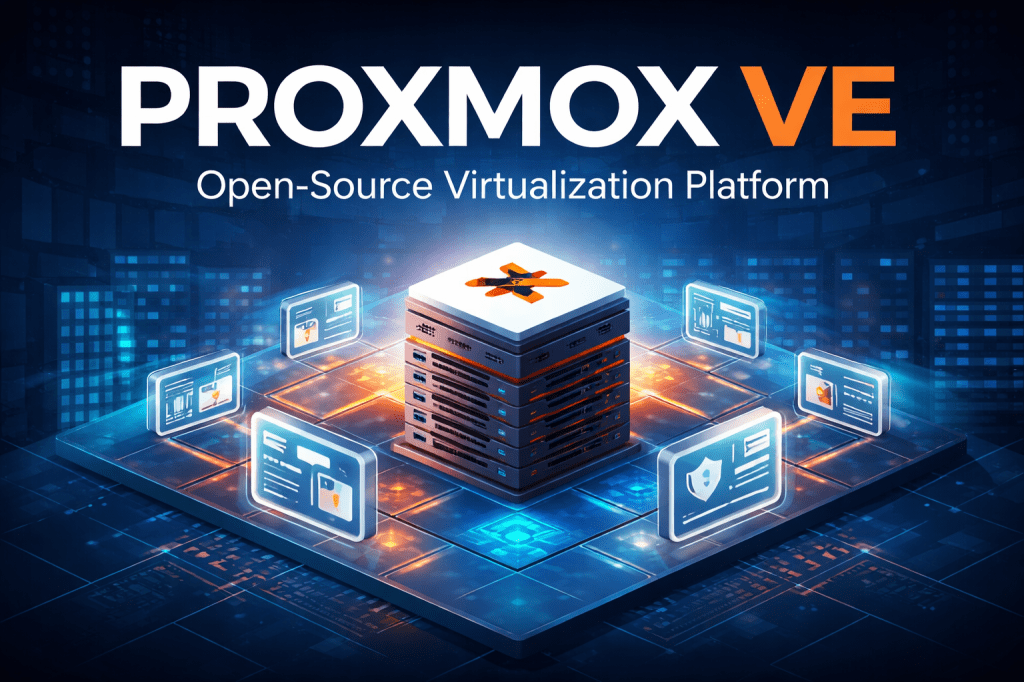
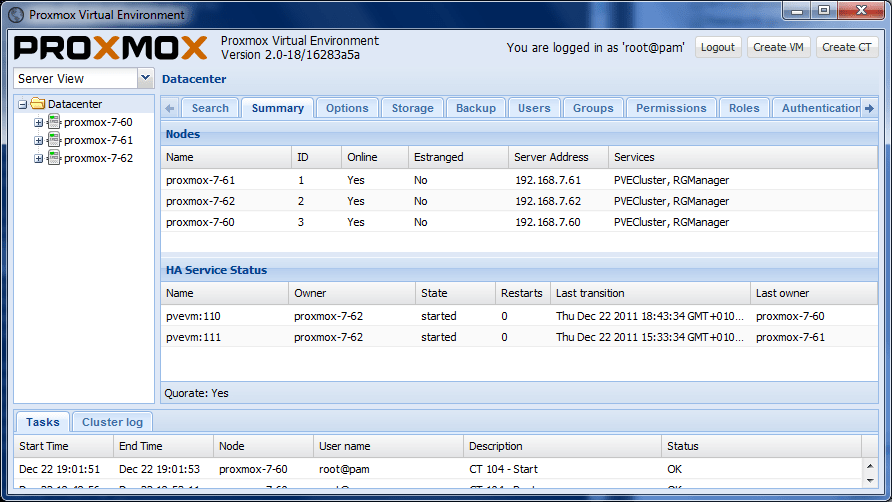
Proxmox VE Hypervisor: A Modern Open-Source Alternative to Traditional Virtualization
Daily Cloud Blog | Cloud • Infrastructure • Architecture
As organizations reassess virtualization strategies—especially amid rising licensing costs—Proxmox Virtual Environment (VE) has emerged as a powerful, open-source alternative for running on-prem and private cloud workloads.
At Daily Cloud Blog, we focus on practical, real-world cloud and infrastructure technologies. In this article, we’ll break down what Proxmox VE is, how it works, and where it fits in modern IT environments—from homelabs to small and mid-sized enterprise deployments.
What Is Proxmox VE?
Proxmox VE is a Debian-based, open-source virtualization platform that combines two proven technologies into a single management experience:
- KVM (Kernel-based Virtual Machine) for full virtual machines
- LXC (Linux Containers) for lightweight, containerized workloads
Both are managed through a centralized web-based interface, making Proxmox easy to deploy, operate, and scale.
Key Features at a Glance
- Unified management for VMs and containers
- Native clustering and high availability
- Flexible storage and networking options
- No per-core or per-VM licensing
- Optional enterprise support subscriptions
This combination makes Proxmox especially attractive for cost-conscious teams that still require enterprise-grade capabilities.
Virtualization with KVM and LXC
KVM Virtual Machines
Proxmox uses KVM to deliver full virtualization for:
- Windows and Linux workloads
- Database servers and line-of-business apps
- Infrastructure services requiring full OS isolation
Features include snapshots, live migration, and resource controls comparable to traditional enterprise hypervisors.
LXC Containers
For lightweight workloads, Proxmox supports LXC containers:
- Near bare-metal performance
- Fast provisioning and low overhead
- Ideal for dev/test, automation tools, and infrastructure services
This dual-model approach allows teams to choose the right abstraction for each workload.
Clustering and High Availability
One of Proxmox VE’s standout capabilities is built-in clustering—with no additional licensing.
With multiple nodes, administrators can:
- Form a Proxmox cluster in minutes
- Live migrate VMs between hosts
- Enable HA to automatically restart workloads if a node fails
For SMBs and edge environments, this provides enterprise-style resiliency without enterprise pricing.
Storage Options and Flexibility
Proxmox supports a wide range of storage backends:
- Local storage (LVM, ZFS)
- Network storage (NFS, iSCSI)
- Distributed storage (Ceph)
- ZFS replication for DR scenarios
A popular setup highlighted often on Daily Cloud Blog is Proxmox + ZFS, offering snapshots, replication, and data integrity without third-party tools.
Networking Capabilities
Proxmox networking is built on Linux primitives, giving admins deep flexibility:
- Linux bridges
- VLAN tagging
- NIC bonding for redundancy and performance
- Advanced SDN features for complex environments
This makes Proxmox well-suited for on-prem, hybrid, and lab environments that require tight network control.
Backup and Disaster Recovery
Proxmox includes native backup functionality:
- Full and incremental backups
- Snapshot-based backups for minimal downtime
- Local or remote backup targets
For more advanced needs, Proxmox Backup Server adds:
- Global deduplication
- Compression and encryption
- Fast, reliable restores
Why Proxmox Is Gaining Popularity
At Daily Cloud Blog, we see Proxmox adopted most often for:
✅ VMware alternative initiatives
✅ Homelabs and learning environments
✅ SMB and edge deployments
✅ Private cloud proof-of-concepts
✅ Cost-optimized virtualization stacksThe open-source model, combined with strong community and enterprise support options, makes Proxmox a compelling long-term platform.
When Proxmox May Not Be Ideal
Proxmox might not be the best choice if:
- You rely heavily on vendor-locked enterprise ecosystems
- Your organization requires strict third-party certifications
- Your team lacks Linux administration experience
As with any platform, success depends on skills, use cases, and operational maturity.
Final Thoughts
Proxmox VE delivers a modern, flexible virtualization platform that aligns well with today’s infrastructure trends. As organizations seek alternatives to traditional hypervisors, Proxmox continues to stand out as a capable, production-ready solution.
For teams exploring open-source infrastructure or modern private cloud designs, Proxmox VE is absolutely worth evaluating.
Route 53 + Elastic Load Balancer for a Highly Available WordPress Site on AWS
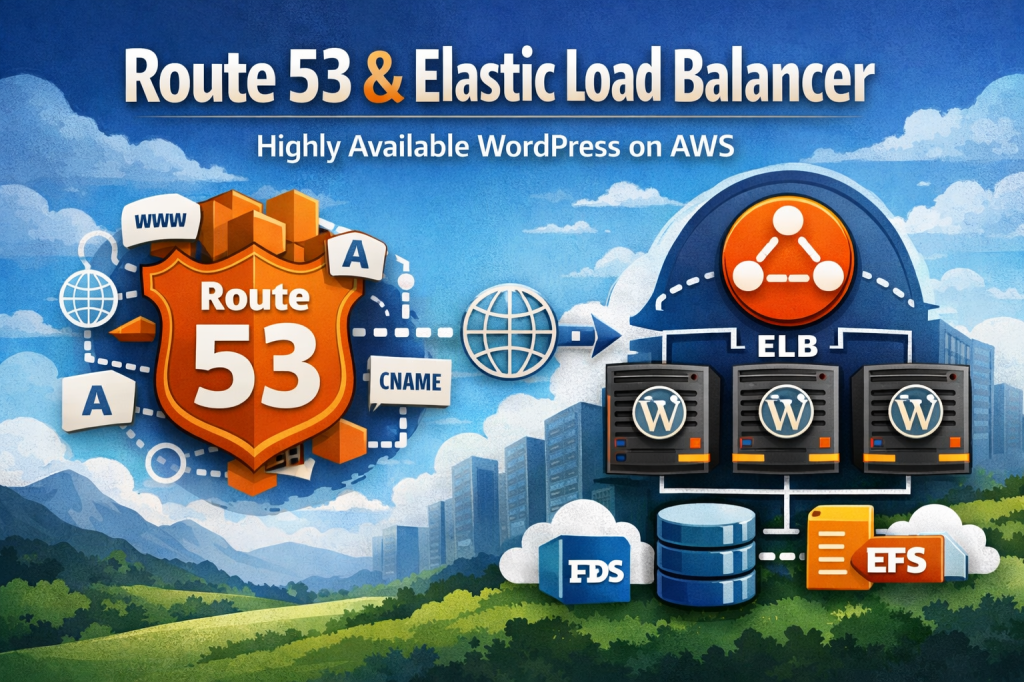
Daily Cloud Blog • AWS Networking
Route 53 + Elastic Load Balancer for a Highly Available WordPress Site on AWS
Learn how Amazon Route 53 and Elastic Load Balancer (ALB) work together to deliver scalable DNS, secure HTTPS, and resilient traffic distribution for WordPress.
TL;DR:
Route 53 resolves your domain and can steer traffic intelligently; an Application Load Balancer terminates HTTPS and spreads requests across healthy WordPress servers—boosting uptime, scale, and security.
In this guide
- What is Route 53?
- What is Elastic Load Balancer (ELB)?
- How Route 53 and ELB work together
- Reference architecture for WordPress
- Route 53 routing policies that matter
- Security best practices
- Benefits recap
- Final thoughts
WordPress is easy to launch—but running it reliably in production is a different game. If your site supports a business, a brand, or an e-commerce store,
you need an architecture designed for availability, performance, and secure traffic handling.Two AWS services form the backbone of most production WordPress deployments:
Amazon Route 53 (DNS + traffic steering) and Elastic Load Balancing (traffic distribution + health checks).
This post explains how they fit together—and how to use them the right way.What Is Amazon Route 53?
Amazon Route 53 is AWS’s scalable, highly available DNS service. Its job is to translate your domain name
(likewww.example.com) into a destination your users can reach.Route 53 features that matter for WordPress
- DNS hosting + domain management in one place
- Health checks to detect unhealthy endpoints
- Routing policies for failover, latency-based routing, and traffic shifting
- Alias records that point directly to AWS resources like load balancers
Common record types you’ll use
Record Type Typical Use A / AAAA Map a hostname to an IPv4/IPv6 address Alias Point to AWS resources (ALB/CloudFront/S3) without a CNAME CNAME Map one hostname to another hostname (not for zone apex) TXT Domain verification, SPF/DMARC, and other text-based settings What Is Elastic Load Balancer (ELB)?
Elastic Load Balancing distributes incoming requests across multiple targets—like EC2 instances or containers—so you’re not relying on a single server.
For WordPress, ELB is the difference between “one instance goes down and we’re offline” and “traffic routes around failures automatically.”Which load balancer should you use?
- Application Load Balancer (ALB) – Best for WordPress (HTTP/HTTPS, path-based routing, redirects)
- Network Load Balancer (NLB) – TCP/UDP, ultra-high performance (usually not necessary for WP)
- Classic Load Balancer – Legacy (avoid for new builds)
Daily Cloud Blog takeaway:
Use an ALB for WordPress. It handles HTTPS termination cleanly and integrates nicely with Auto Scaling Groups and WAF.
How Route 53 and ELB Work Together
Think of Route 53 as the front desk that directs visitors to the right entrance, and the ALB as the traffic controller that distributes visitors
across healthy WordPress servers.Typical traffic flow
- A user visits
www.yoursite.com - Route 53 resolves the hostname using an Alias record
- The Alias points to your Application Load Balancer
- The ALB terminates HTTPS and forwards traffic to a Target Group
- Health checks ensure only healthy WordPress instances receive traffic
User → Route 53 (DNS) → ALB (HTTPS + routing)
→ WordPress instances (Auto Scaling)
 ↘ health checks & failover logic ↙
Reference Architecture for WordPress on AWS
Here’s a battle-tested baseline architecture for WordPress that uses Route 53 + ALB as the entry point.
Core components
- Route 53 – DNS and (optionally) health checks / routing policies
- Application Load Balancer – HTTPS termination + traffic distribution
- EC2 Auto Scaling Group – multiple WordPress web nodes across Availability Zones
- Amazon RDS – managed MySQL for the WordPress database
- Amazon EFS – shared storage for
wp-content(uploads/themes/plugins) - AWS Certificate Manager (ACM) – free SSL/TLS certificates for ALB
Pro tip:
If you want even better global performance, put CloudFront in front of the ALB. Route 53 can Alias to CloudFront too.
Route 53 Routing Policies That Matter
Route 53 can do more than “point domain to load balancer.” These routing policies unlock uptime and safer deployments.
1) Simple routing
One record, one destination (your ALB). Perfect for most single-region WordPress sites.
2) Failover routing
Primary ALB + secondary ALB. Route 53 health checks can shift DNS to the backup if the primary fails—useful for DR patterns.
3) Latency-based routing
Send users to the region that offers the lowest latency (helpful if you run WordPress in multiple regions).
4) Weighted routing
Shift traffic gradually between environments—great for blue/green deployments during WordPress upgrades or major plugin changes.
Security Best Practices
- Terminate HTTPS at the ALB using ACM certificates
- Redirect HTTP → HTTPS at the ALB listener
- Keep WordPress instances private (only the ALB is public)
- Attach AWS WAF to the ALB to block common attacks (SQLi/XSS, bad bots)
- Use Security Groups intentionally (ALB → instances only; instances → DB/EFS only)
- Enable access logs (ALB logs to S3; WordPress logs to CloudWatch)
Daily Cloud Blog security note:
WordPress gets targeted constantly. Putting an ALB in front (with WAF + HTTPS) is one of the easiest “big wins” you can make.
Benefits Recap
- High availability across multiple Availability Zones
- Better performance under load with horizontal scaling
- Resiliency via health checks and automatic traffic distribution
- Cleaner security posture with HTTPS termination + WAF integration
- Safer deployments using weighted or failover routing patterns
Final Thoughts
Route 53 and an Application Load Balancer are a foundational combo for production WordPress on AWS.
They give you reliable DNS resolution, intelligent traffic steering, secure HTTPS handling, and a scalable front door that can survive instance failures.Want to take this further? A common next step is adding CloudFront for caching and global edge delivery,
plus a hardened WAF rule set tailored to WordPress.Choosing the Right AWS Database: RDS, DynamoDB, and More

Introduction
In today’s data-driven world, the choice of a database can significantly impact the performance, scalability, and cost-effectiveness of applications. With various data storage options available, ranging from traditional relational databases to modern NoSQL solutions, navigating through these choices can be daunting. This comprehensive guide explores the diverse range of database services offered by Amazon Web Services (AWS), detailing key characteristics, use cases, and potential limitations of each option.
Whether you’re building a small application or designing an enterprise-level system, understanding the distinct advantages of services like Amazon RDS, DynamoDB, and Amazon Redshift will help you make informed decisions. Join us as we delve into the intricacies of AWS databases and discover the right solution for your specific workload requirements.
1️⃣ Relational Databases (OLTP)
🔹 Amazon RDS (Relational Database Service)
Engines
- MySQL
- PostgreSQL
- MariaDB
- Oracle
- SQL Server
Key Characteristics
- Managed relational databases
- ACID compliant
- Automated backups, patching, Multi-AZ
- Vertical & limited horizontal scaling
Use Cases
- Traditional applications
- ERP / CRM systems
- Transactional workloads
- Applications requiring SQL joins and constraints
Limitations
- Scaling is slower
- Read replicas help reads, not writes
🔹 Amazon Aurora

Compatibility
- MySQL-compatible
- PostgreSQL-compatible
Key Characteristics
- Cloud-native distributed storage
- Up to 15 read replicas
- Faster failover than RDS
- Serverless option available
Use Cases
- High-performance OLTP
- SaaS platforms
- Mission-critical apps needing high availability
Why Aurora over RDS?
- Better performance
- Faster failover
- Higher scalability
2️⃣ NoSQL Databases (Key-Value / Document)
🔹 Amazon DynamoDB
Type
- Key-Value / Document NoSQL
Key Characteristics
- Fully serverless
- Single-digit millisecond latency
- Auto-scaling
- Global Tables

Use Cases
- Serverless applications
- IoT workloads
- Gaming leaderboards
- Session management
- Event-driven architectures
Common Pitfall
- Poor partition key design = throttling
🔹 Amazon Keyspaces (for Apache Cassandra)
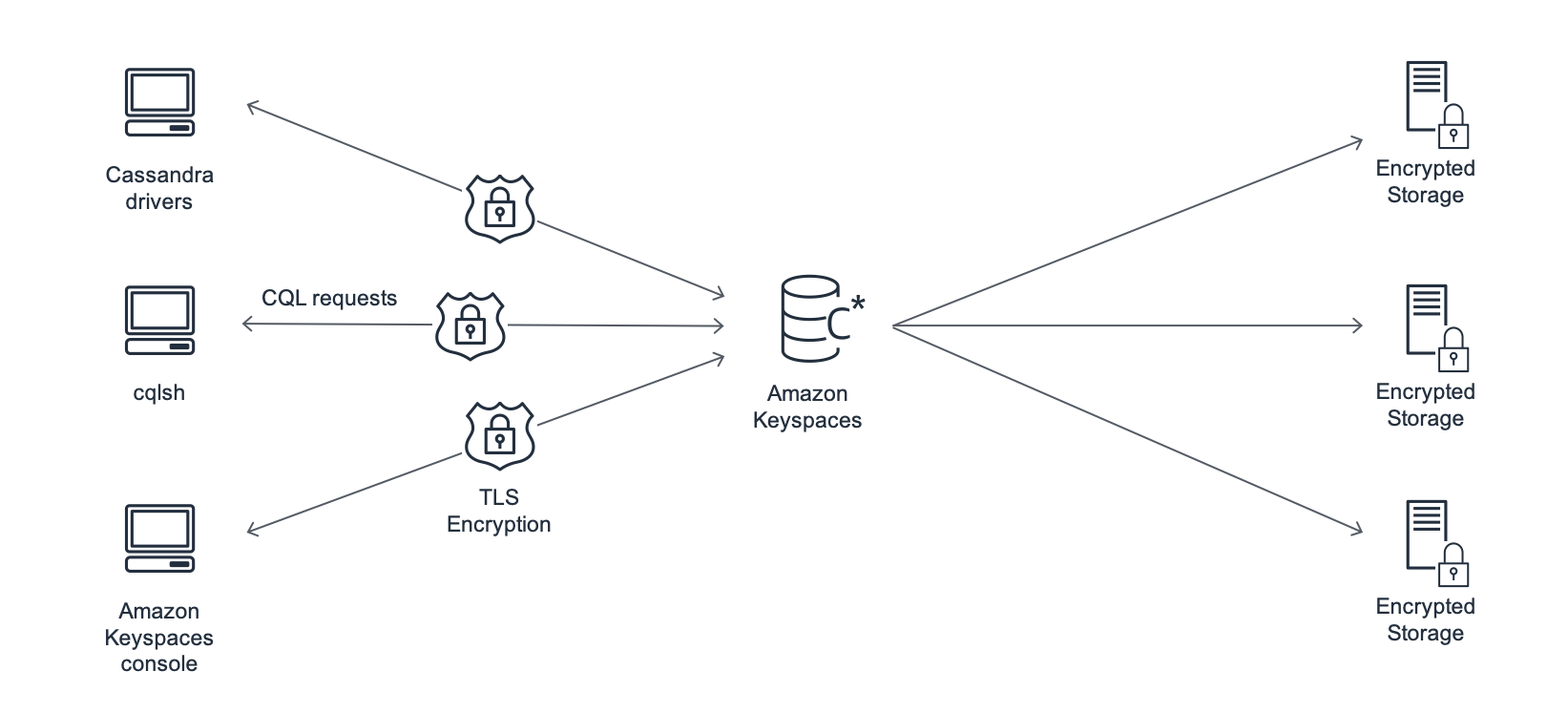
Type
- Wide-column NoSQL
Key Characteristics
- Managed Cassandra
- No servers or patching
- Scales automatically
Use Cases
- Cassandra migrations
- Time-series data
- High-write workloads
3️⃣ In-Memory Databases & Caching
🔹 Amazon ElastiCache

Engines
- Redis
- Memcached
Key Characteristics
- Microsecond latency
- In-memory storage
- Reduces database load
Use Cases
- Read-heavy applications
- Session caching
- Leaderboards
- Real-time analytics
Redis vs Memcached
Feature Redis Memcached Persistence ✅ Yes ❌ No Replication ✅ Yes ❌ No Data types Rich Simple HA Yes No
🔹 Amazon MemoryDB for Redis

Type
- Durable in-memory database
Key Characteristics
- Redis-compatible
- Multi-AZ durability
- Transaction log persistence
Use Cases
- Financial services
- Real-time fraud detection
- Applications needing speed + durability
🔹 DynamoDB Accelerator (DAX)
Type
- In-memory cache for DynamoDB
Key Characteristics
- Fully managed
- Microsecond reads
- Write-through cache
Use Cases
- Read-heavy DynamoDB workloads
- Hot-key access patterns
4️⃣ Data Warehousing & Analytics (OLAP)
🔹 Amazon Redshift
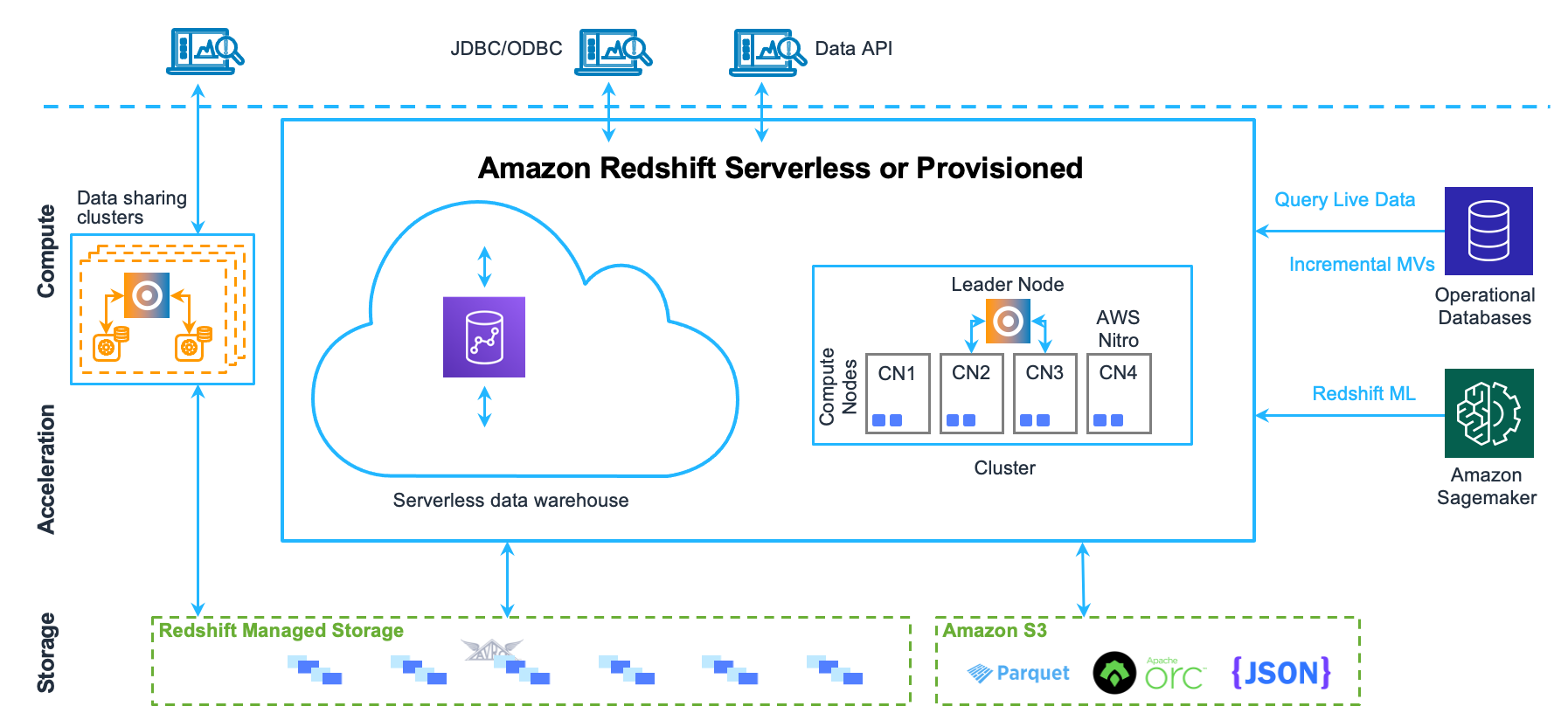
Type
- Columnar data warehouse
Key Characteristics
- Massively Parallel Processing (MPP)
- Optimized for analytics
- Integrates with S3 (Spectrum)

Use Cases
- Business intelligence
- Reporting
- Analytics dashboards
- Historical data analysis
Not For
- OLTP workloads
5️⃣ Search & Indexing
🔹 Amazon OpenSearch Service
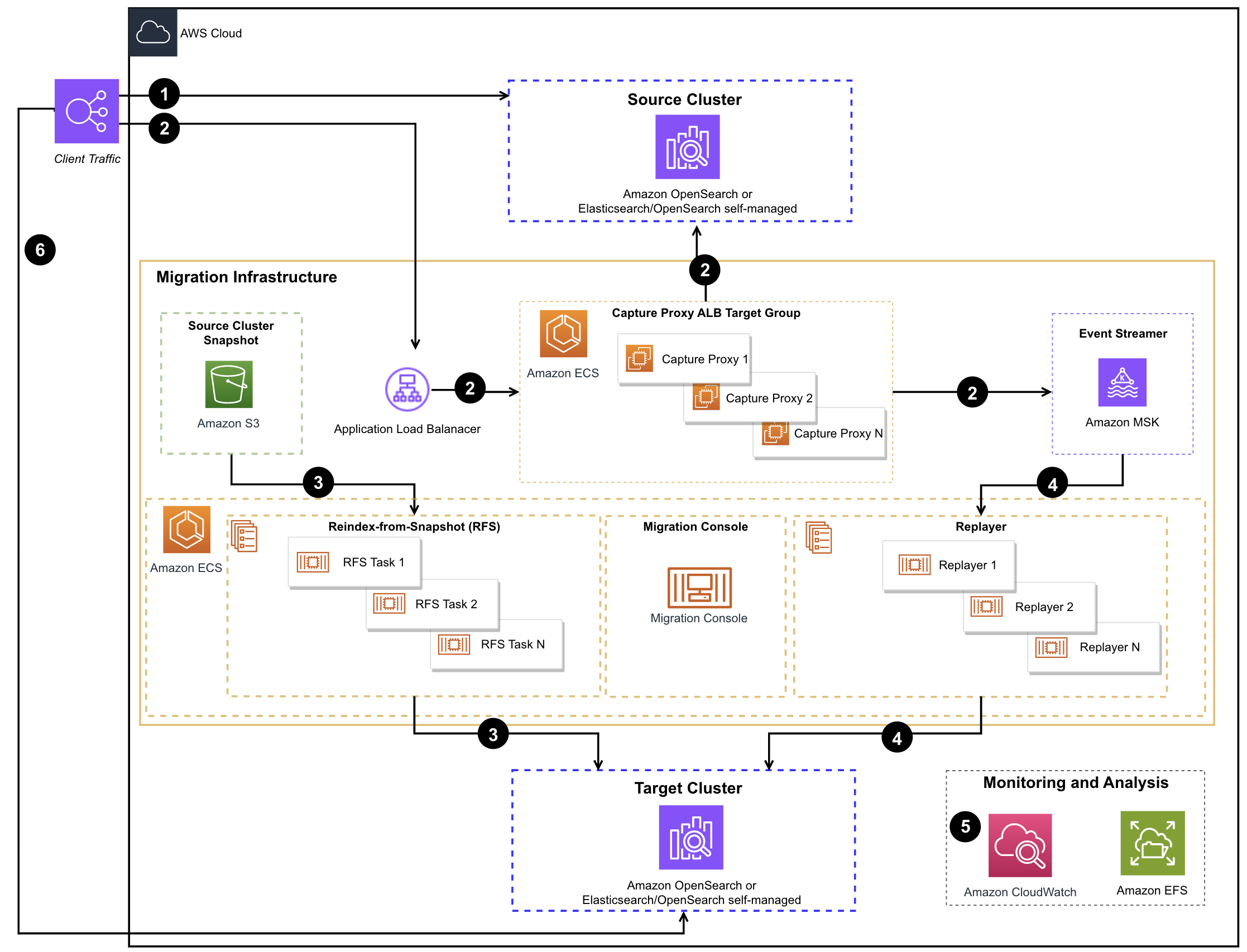
Type
- Search & analytics engine
Key Characteristics
- Full-text search
- Log analytics
- Near real-time indexing
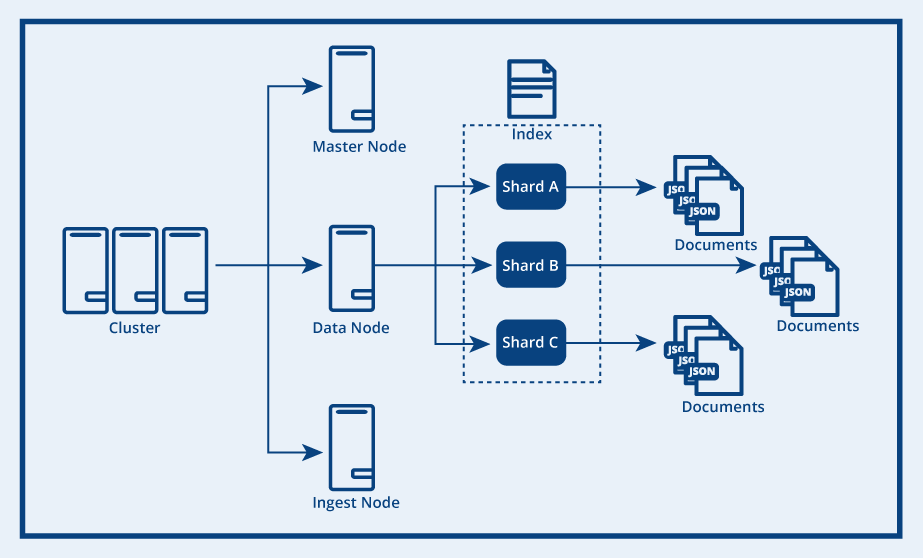
Use Cases
- Application search
- Log aggregation
- Security analytics (SIEM)
- Observability dashboards
6️⃣ Graph Databases
🔹 Amazon Neptune

Type
- Graph database
Key Characteristics
- Supports Gremlin & SPARQL
- Optimized for relationships
Use Cases
- Social networks
- Fraud detection
- Recommendation engines
- Network topology modeling

7️⃣ Ledger & Time-Series Databases
🔹 Amazon QLDB (Quantum Ledger Database)

Type
- Immutable ledger database
Key Characteristics
- Cryptographically verifiable
- Append-only
- No blockchain complexity
Use Cases
- Financial transactions
- Audit trails
- Compliance systems
🔹 Amazon Timestream

Type
- Time-series database
Key Characteristics
- Optimized for time-based data
- Automatic tiering
- SQL-like queries
Use Cases
- IoT telemetry
- Metrics & monitoring
- Application performance data
8️⃣ Document Database
🔹 Amazon DocumentDB (MongoDB Compatible)

Type
- JSON document database
Key Characteristics
- MongoDB API compatible
- Scales automatically
- Managed backups

Use Cases
- Content management
- User profiles
- JSON-heavy workloads
🧭 Decision Cheat Sheet
Requirement Service ACID transactions RDS / Aurora Massive scale & low latency DynamoDB Caching ElastiCache / DAX Analytics Redshift Search OpenSearch Graph relationships Neptune Ledger QLDB Time-series Timestream Redis + durability MemoryDB
🚨 Common AWS Exam & Real-World Mistakes
- Using RDS for analytics instead of Redshift
- Forgetting ElastiCache is not durable (unless MemoryDB)
- Poor DynamoDB partition key design
- Using OpenSearch as a primary database
- Overusing Aurora when DynamoDB fits better
✅ Final Takeaway
AWS doesn’t have “one database.” It has the right database for each workload.
Understanding why each exists is the difference between clean architectures and expensive outages.Azure Migrate: An Overview + Step-by-Step Demos
 DCBDaily Cloud Blog
Azure Migrate: An Overview + Step-by-Step Demos
Discover • Assess • Migrate • Modernize — a practical guide to Microsoft’s migration hub.
In this postMigrating to Azure can feel overwhelming—especially when you’re dealing with legacy infrastructure, tight timelines, and business-critical workloads.
That’s where Azure Migrate comes in.Azure Migrate is Microsoft’s central hub for cloud migration. It helps you discover, assess, migrate, and modernize
workloads moving to Azure—while keeping everything tracked in one place.
What Is Azure Migrate?
Azure Migrate is a service in the Azure portal that provides a single migration experience for moving:
- VMware workloads
- Hyper-V workloads
- Physical servers
- Applications and databases
- Data and file servers
It’s not just one tool—it’s an orchestrator that ties together discovery, assessment, and migration tooling so you can plan confidently and execute in waves.
Daily Cloud Blog Note: Most migration issues come from skipping discovery, underestimating dependencies, or mis-sizing workloads. Azure Migrate is designed to prevent those surprises.Core Components of Azure Migrate
1) Discovery & Assessment
Azure Migrate discovers your environment and answers:
- What do we have (inventory)?
- Is it ready for Azure?
- What size should it be in Azure (performance-based sizing)?
- How much will it cost?
- What are the dependencies (app-to-app, server-to-server)?
2) Migration & Modernization
Based on the assessment, you choose a strategy (rehost/replatform/refactor) and migrate with tools like:
- Azure Migrate: Server Migration (agentless replication for VMware; agent-based options for others)
- Azure Database Migration Service for database moves
- Azure Site Recovery–based replication patterns
3) Tracking & Governance
Azure Migrate helps track migration progress and aligns well with good governance:
- Wave-based execution
- Readiness checks and reporting
- Cost planning
- Security posture improvements when paired with Defender for Cloud
High-Level Workflow
- Discover workloads (VMware/Hyper-V/physical)
- Assess readiness, sizing, and cost
- Plan migration waves and cutover schedule
- Migrate with replication + test migrations
- Cutover and validate
- Optimize (rightsizing, security, modernization)
Common Best Practices
- Always use performance-based assessments (not “guess sizing”).
- Turn on dependency mapping early for critical apps.
- Migrate in waves (pilot → business apps → mission-critical).
- Reduce DNS TTL ahead of cutover and document rollback steps.
- Revisit sizing after migration (rightsizing saves big money).
Step-by-Step Azure Migrate Demos
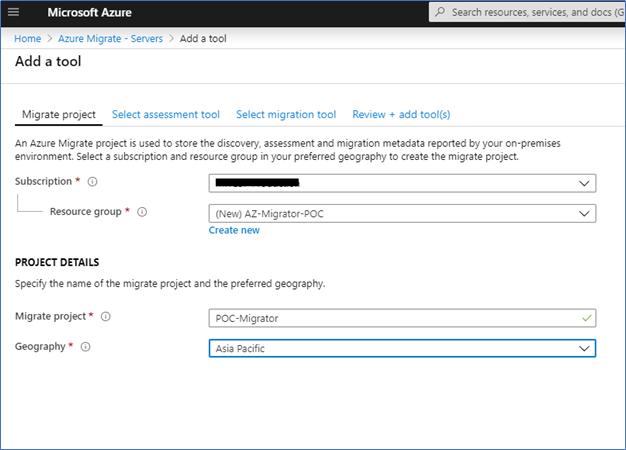
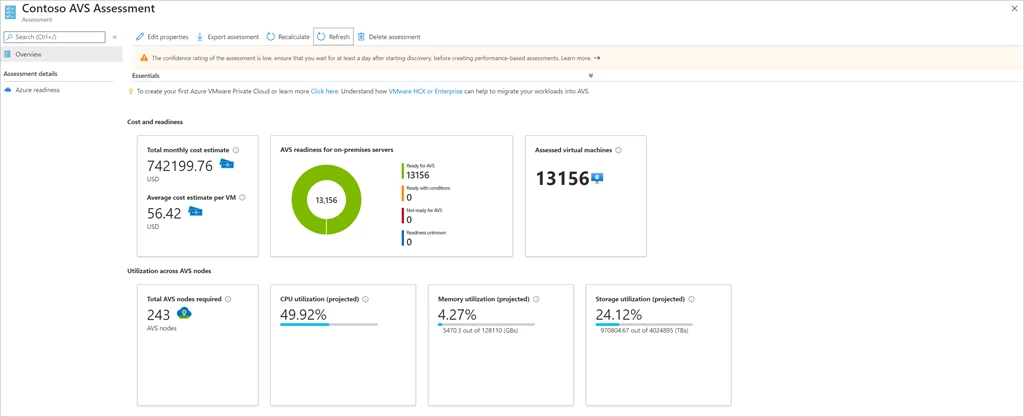
Below are practical demos you can follow in a lab or real environment. Each demo includes the goal, prerequisites, and step-by-step actions.
Replace the placeholders (subscription, region, resource group names) with yours.Troubleshooting & Pro Tips
- Discovery shows zero servers: confirm appliance registration, network access to vCenter/hosts, and credentials.
- Assessments look oversized: verify performance history window and ensure performance-based sizing is enabled.
- Replication slow: check bandwidth, throttling, disk churn, and cache storage performance.
- Cutover issues: validate DNS, static IP dependencies, domain join, and firewall rules.
- Cost higher than expected: rightsizing + reserved instances + AHUB can materially reduce spend.
© Daily Cloud Blog — Educational content. Validate configurations against your organization’s security and compliance requirements.
Jenkins Explained: How It Powers CI/CD Pipelines 🚀

Daily Cloud Blog
Practical Cloud • DevOps • Security • Automation
Jenkins Explained: How It Powers CI/CD Pipelines
By Daily Cloud Blog
In toda’s modern DevOps environments, automation is everything. From building code to testing, packaging, and deploying applications, teams rely on Continuous Integration and Continuous Delivery (CI/CD) to move fast without breaking things. One of the most widely adopted tools enabling this automation is Jenkins.
This article provides a clear, practical overview of what Jenkins is, how it works, and how it enables CI/CD pipelines in real-world environments.
What Is Jenkins?
Jenkins is an open-source automation server used to automate repetitive tasks in the software development lifecycle. Its most common use cases include:
- Continuous Integration (CI)
- Continuous Delivery (CD)
- Build automation
- Test automation
- Deployment orchestration
Originally created as Hudson, Jenkins has evolved into a highly extensible platform with thousands of plugins supporting nearly every language, framework, cloud provider, and DevOps tool.
Why Jenkins Matters in CI/CD
Without CI/CD, development teams often struggle with:
- Manual builds and deployments
- Late detection of bugs
- Inconsistent environments
- Slow release cycles
Jenkins solves these problems by:
- Automatically building code on every change
- Running tests early and often
- Enforcing consistent pipelines
- Reducing human error
- Accelerating software delivery
Jenkins Architecture (High Level)
At its core, Jenkins follows a controller–agent architecture:

1. Jenkins Controller (Master)
- Hosts the Jenkins UI and API
- Manages job configuration and scheduling
- Orchestrates pipeline execution
- Stores logs and build metadata
2. Jenkins Agents (Workers)
- Execute the actual jobs
- Can be physical servers, VMs, containers, or cloud instances
- Allow horizontal scaling of pipelines
This separation makes Jenkins highly scalable and suitable for enterprise workloads.
How Jenkins Works Step by Step
Here’s a simplified CI/CD flow using Jenkins:
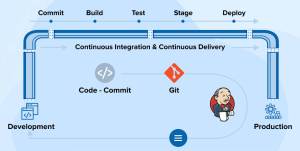
Step 1: Code Change
A developer pushes code to a version control system such as GitHub, GitLab, or Bitbucket.
Step 2: Trigger
Jenkins detects the change via:
- Webhooks
- Polling the repository
- Scheduled builds
Step 3: Build
Jenkins:
- Pulls the latest code
- Compiles it
- Resolves dependencies
Step 4: Test
Automated tests are executed:
- Unit tests
- Integration tests
- Security scans
- Linting and quality checks
Step 5: Package
Artifacts are created:
- JAR/WAR files
- Docker images
- ZIP/TAR bundles
Step 6: Deploy
Artifacts are deployed to:
- Development
- Staging
- Production environments
This entire process runs automatically, often in minutes.
Jenkins Pipelines (The Heart of CI/CD)
Modern Jenkins uses Pipeline as Code, defined in a
Jenkinsfile.Key benefits of pipelines:
- Version-controlled
- Repeatable
- Auditable
- Easy to review and update
Jenkins Plugins Ecosystem
One of Jenkins’ biggest strengths is its plugin ecosystem.
Popular plugin categories include:
- Source Control: Git, GitHub, GitLab
- Build Tools: Maven, Gradle, npm
- Containers & Cloud: Docker, Kubernetes, AWS, Azure
- Testing: JUnit, Selenium
- Notifications: Slack, email, MS Teams
- Security: Credentials, secrets management
Plugins allow Jenkins to integrate seamlessly into almost any DevOps toolchain.
Jenkins in Cloud & Container Environments
Jenkins works well in:
- On-prem data centers
- Hybrid environments
- Public cloud (AWS, Azure, GCP)
- Kubernetes clusters
A common modern pattern:
- Jenkins controller runs in Kubernetes
- Agents are spun up dynamically as pods
- Pipelines scale automatically based on workload
This model reduces infrastructure cost and improves resilience.
Common Jenkins Use Cases
- CI/CD for microservices
- Infrastructure automation (Terraform, Ansible)
- Container image builds
- Security and compliance pipelines
- Blue/green and canary deployments
Jenkins vs Other CI/CD Tools (Quick Take)
Tool Best For Jenkins Maximum flexibility and customization GitHub Actions Tight GitHub integration GitLab CI All-in-one DevOps platform Azure DevOps Microsoft-centric environments Jenkins remains a strong choice when custom pipelines, complex workflows, or hybrid environments are required.
Key Advantages of Jenkins
✅ Open-source and free
✅ Massive plugin ecosystem
✅ Highly customizable
✅ Strong community support
✅ Cloud and container friendly
Final Thoughts
Jenkins remains one of the most powerful and flexible CI/CD tools available today. While newer platforms offer more “out-of-the-box” simplicity, Jenkins continues to excel in environments that demand control, extensibility, and scale.
Whether you’re building a startup CI pipeline or running enterprise-grade DevOps workflows, Jenkins provides the foundation to automate, test, and deploy with confidence.
© Daily Cloud Blog – Cloud • DevOps • Automation
Unlocking Cloud Success with Azure Migrate
Migrating to Azure can feel overwhelming, especially when you’re dealing with legacy infrastructure, tight timelines, and business-critical workloads. That’s where Azure Migrate comes in.
Azure Migrate is Microsoft’s central hub for cloud migration, designed to help organizations discover, assess, migrate, and modernize workloads moving to Azure—all from a single, unified service.
In this post, we’ll break down what Azure Migrate is, how it works, and why it should be the foundation of any Azure migration strategy.
What Is Azure Migrate?
Azure Migrate is a Microsoft service that provides a single portal experience to track and manage your migration journey to Azure. It supports migrations from:
- On-premises data centers
- VMware environments
- Hyper-V environments
- Physical servers
- Other cloud platforms
Rather than being a single tool, Azure Migrate acts as a framework and orchestrator that integrates multiple discovery, assessment, and migration tools under one umbrella.
Why Azure Migrate Matters
Cloud migrations fail when organizations:
- Skip proper assessments
- Underestimate dependencies
- Ignore cost and performance planning
- Treat migration as “lift and forget”
Azure Migrate addresses these issues by enforcing a structured, data-driven approach aligned with Microsoft best practices and the Microsoft Cloud Adoption Framework.

Core Components of Azure Migrate
1. Discovery & Assessment
Azure Migrate discovers your environment and answers critical questions like:
- What servers do I have?
- How are they sized?
- What are they dependent on?
- How much will they cost in Azure?
Key capabilities:
- Performance-based VM sizing
- Dependency mapping
- Readiness checks for Azure
- Cost estimation with Azure pricing
Supported sources:
- VMware vSphere
- Hyper-V
- Physical servers
- Other clouds

2. Migration & Modernization
Once workloads are assessed, Azure Migrate helps you move them using built-in and integrated tools.
Supported migration paths:
- Server migration (IaaS)
- Database migration
- Web app migration
- Data migration
Azure Migrate integrates with services like:
- Azure Database Migration Service
- Azure Site Recovery
- Azure App Service migration tools
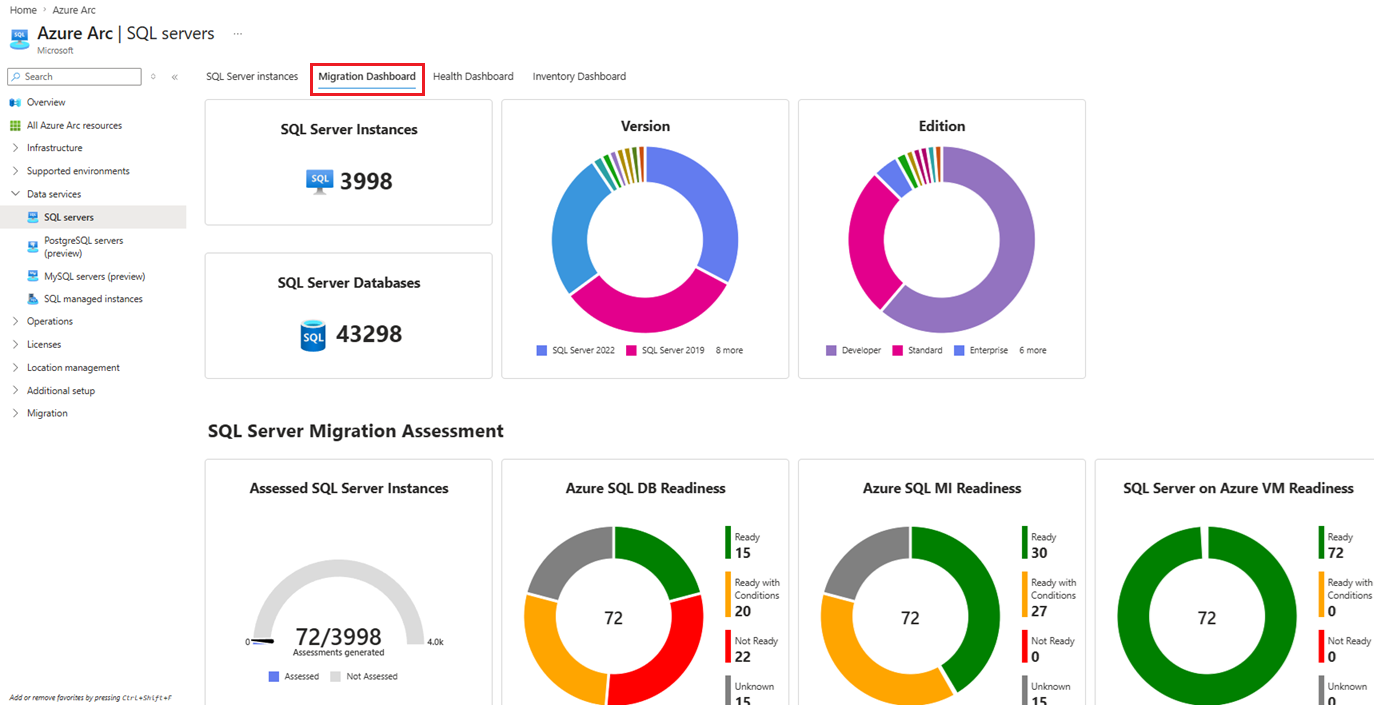
3. Centralized Migration Tracking
Azure Migrate provides:
- End-to-end migration status
- Wave-based tracking
- Readiness and completion reporting
This makes it easier to:
- Communicate progress to stakeholders
- Manage large-scale enterprise migrations
- Align IT and business leadership
Azure Migrate Workflow (High Level)
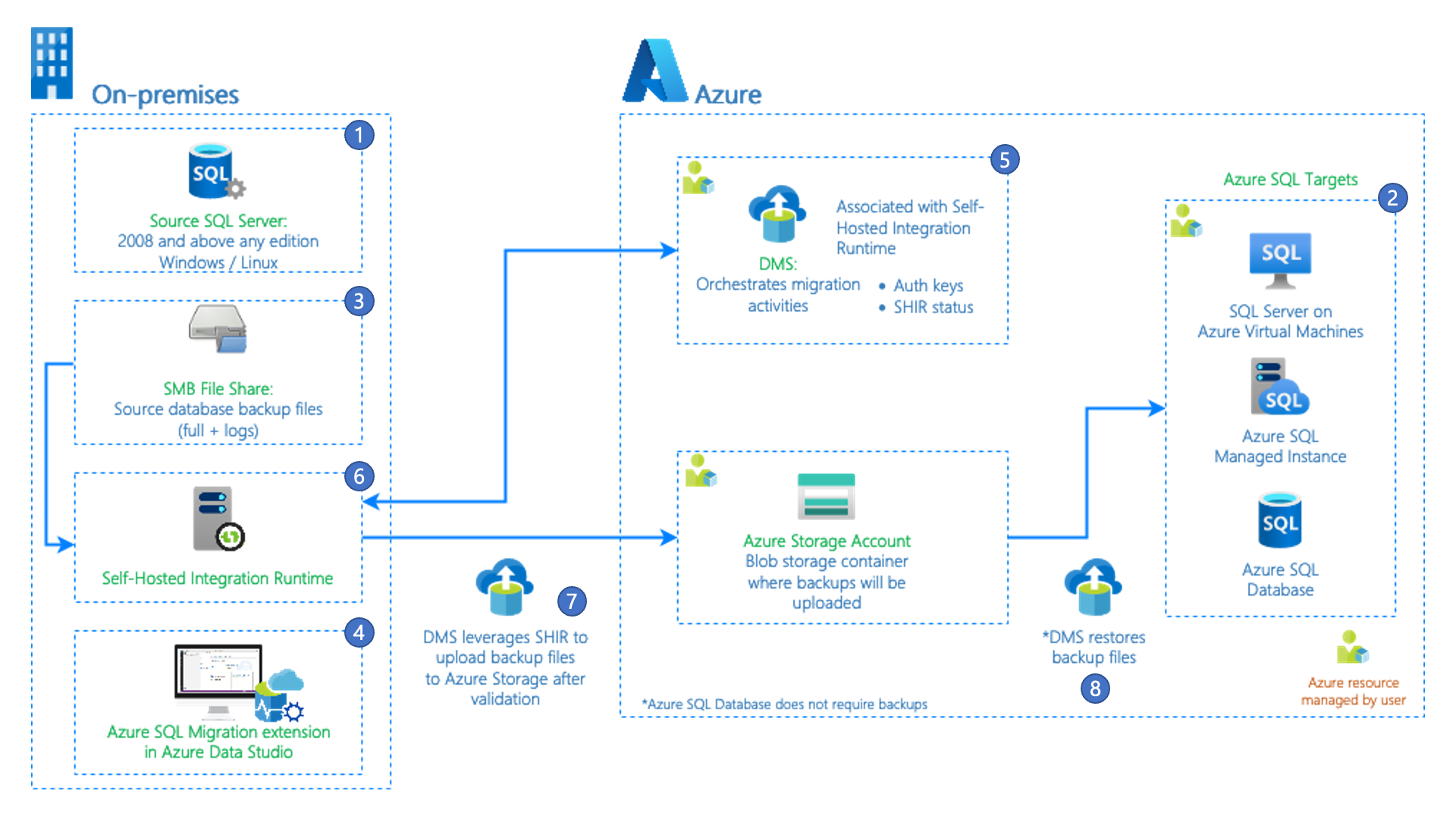
- Discover on-prem or cloud workloads
- Assess readiness, performance, and cost
- Plan migration waves and priorities
- Migrate workloads to Azure
- Optimize & Modernize post-migration

This structured approach dramatically reduces risk and surprises during cutover.
Migration Strategies Supported (6R Model)
Azure Migrate supports the industry-standard 6R migration strategies:
- Rehost – Lift and shift to Azure VMs
- Replatform – Minor optimizations (e.g., Azure SQL)
- Refactor – Cloud-native redesign
- Repurchase – Move to SaaS
- Retire – Decommission unused workloads
- Retain – Keep on-prem for now
Best Practice: Start with re-host for speed, then modernize later.
Security & Governance Built In
Azure Migrate aligns tightly with Azure security and governance services:
- Azure RBAC & least privilege
- Network dependency visibility
- Cost governance planning
- Compliance readiness assessments
When combined with Microsoft Defender for Cloud, organizations gain early visibility into security posture before migration even begins.
Who Should Use Azure Migrate?
Azure Migrate is ideal for:
- Enterprises planning large-scale migrations
- Hybrid cloud environments
- Regulated industries (government, healthcare, finance)
- Organizations modernizing legacy workloads
Whether you’re migrating 10 servers or 10,000, Azure Migrate scales with your environment.
Common Azure Migrate Best Practices
- Always run performance-based assessments
- Enable dependency mapping early
- Migrate in waves, not all at once
- Validate costs before production cutover
- Reassess sizing after migration
Skipping these steps is the fastest way to overspend or underperform in the cloud.
Final Thoughts
Azure Migrate is more than a migration tool, it’s a strategic migration platform that brings structure, visibility, and predictability to your Azure journey.
When used correctly, it:
- Reduces migration risk
- Improves cost accuracy
- Accelerates cloud adoption
- Enables long-term modernization
If Azure is your destination, Azure Migrate Services should be your starting point.
Comparing Microsoft Defender, CrowdStrike, and SentinelOne

Subscribe to continue reading
Subscribe to get access to the rest of this post and other subscriber-only content.
Home
1–2 minutes